Cancel
Start searching

This search is based on elasticsearch and can look through several thousand pages in miliseconds.
Learn more
Imagine you’re clicking through a list of products in an online store, and as you scroll, more items keep loading. This happens a few times until you find an item that interests you and click on it. Since the item isn’t available in the color you want, you go back to the list—using the browser’s back button. You see the list, but not at the spot where you last were. Worse yet, the items that were reloaded are missing from the list, and you have to scroll through the list all over again. That takes time and is frustrating.
Normally, the browser can remember the point on the page from which the visitor navigated to the next page. However, as soon as content is reloaded (e.g., via Ajax), the browser can no longer provide this functionality. Especially with single-page applications—that is, pages that reload their content entirely via JavaScript—the lack of history results in a disastrous user experience. The browser history only recognizes the page’s initial state. The Back button would take the user to the previous page. This could be, for example, a search engine’s results page or a blank page/the browser’s home page if the URL was entered directly. Ideally, however, the browser should take the user back to the exact spot they were viewing before clicking the Back button.
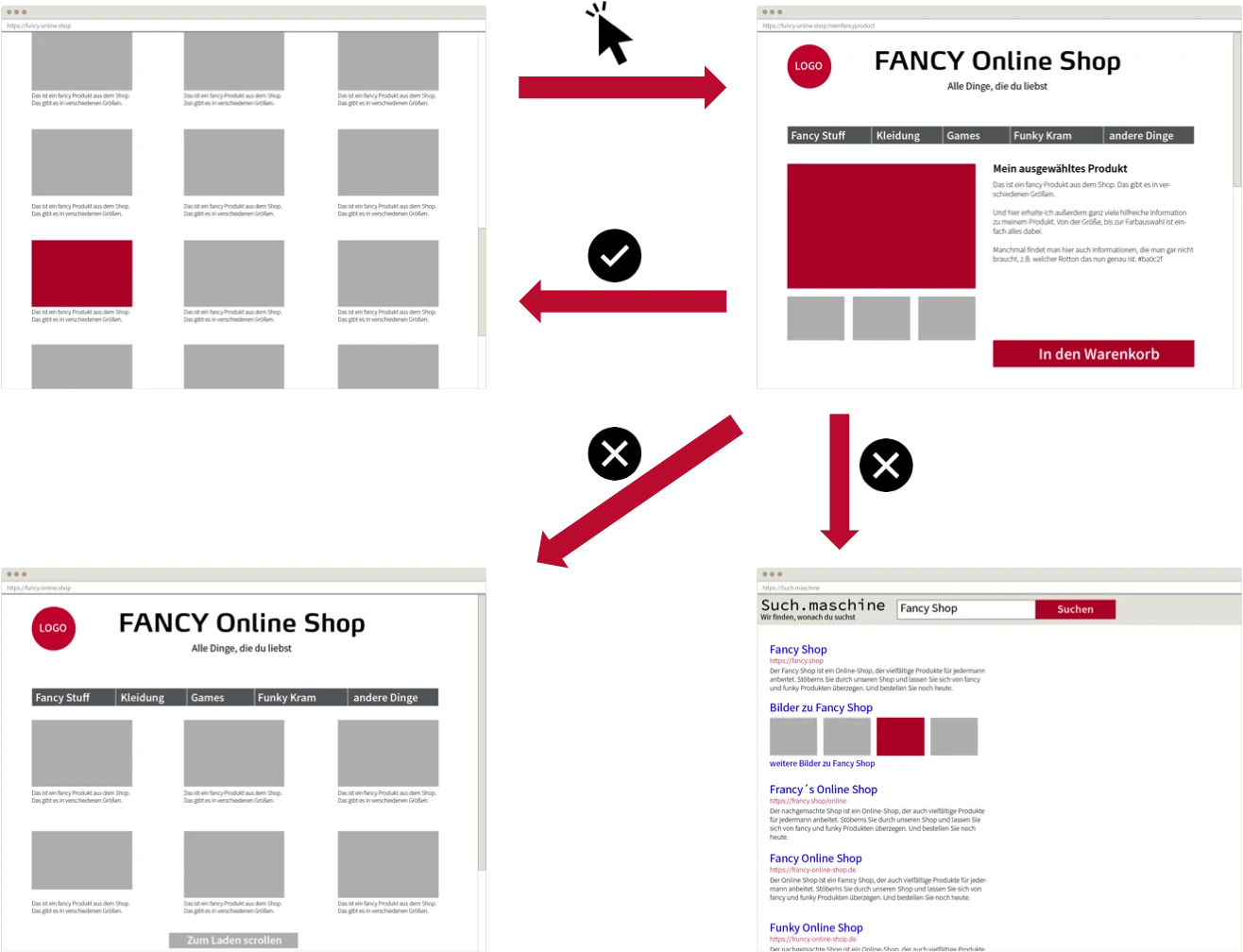
Because the page content is updated dynamically, the browser history isn’t aware of the changes. The browser is doing everything correctly here and displays the previous page exactly as it received it from the server. This could be, for example, a store page showing the first 20 items, even though the visitor had previously seen more than those 20 items by scrolling and reloading. Dynamic content is—as the name suggests—dynamic.
Thanks to the continuous development of web standards, HTML5 offers the ability to customize the browser history as desired using the "window.history" object. This allows you to modify current entries, create new entries, and jump to a specific entry. Of course, there are also JavaScript frameworks that address this issue. However, these aren’t always easy to implement, as it depends heavily on various factors—such as exactly how the page content is reloaded. In some cases, just a few lines of code are enough to implement the desired functionality.
The following code examples refer to our sample project, which can be downloaded at https://github.com/punktDe/demo-browser-history.git.
In our example, we have a page with a menu that changes the page’s content. There is also a link to another page. Without the adjustments to the history, the page could be navigated normally, but the history was only updated when navigating via hyperlinks. As a result, it was not possible to restore the page to its previous state by using the Back button.
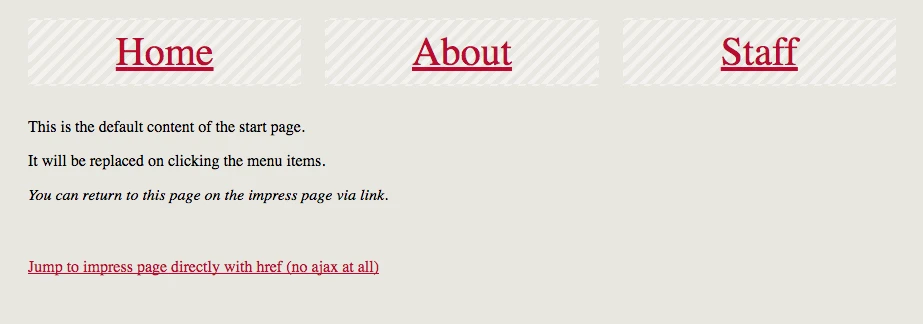
Below are the changes that resolved this issue.
The browser history must be extended with new entries using thehistory.pushState()method. In this method, we can pass any information to the browser as the first parameter, which we can then access in the back event—the "popstate" event. In our example, we pass the reloaded HTML code and the ID of the active menu item in an object. Additionally, you can set the page title as the second parameter. A URL can be specified as the third parameter. This URL can, for example, also contain information such as GET parameters or an anchor (.../home.html#about-us). In our case, this is the current page via "window.location," since the page’s URL will not change when the menu is clicked.
$('#menu a').each(function() {
   $(this).click(function() {
      var activeLinkId = $(this).attr('id');

      $.ajax({
         method: "GET",
         url: $(this).data('url'),
         dataType: "HTML"
      })
      .done(function(html) {
         var dataObject = {
            html: html,
            activeLinkId: activeLinkId
         };

         // this will add a new entry for the browser history like it would happen if you
         // click on a hyperlink on the page with additional information we can use as needed
         history.pushState(dataObject, null, window.location);

         setCurrentPage(html, activeLinkId);
      });
   });
});
Since we know in the click event what was clicked and which content was reloaded, we can simply pack this information into a JavaScript object and pass it to the new "history" object to be created. This ensures, for now, that the Back button stays on the same page. However, nothing else will happen because, in our example, the URL doesn’t cause the content to change. For that, we need the “popstate” event.
To ensure that the page is actually updated correctly after clicking the Back button (or the Forward button), an event listener must be registered for the“popstate” event. Within this event listener, the page can be adjusted based on the information stored in the history. Without adjustments in the event handler, only the URL stored via `history.pushState()` is loaded. If no parameters that affect the page’s state were stored here, the content will not be reloaded automatically.
window.addEventListener('popstate', function(event) {
   if (event.state !== null && event.state !== undefined) {
      setCurrentPage(event.state.html, event.state.activeLinkId);
   }
});
Within the "popstate" event, no JavaScript calls that manipulate the history should be made. Otherwise, the history will change even if, for example, you have used the Back button.
If a page changes continuously as a result of various clicks—such as in an online store when filters are applied to the product list—then thehistory.replaceState()method becomes useful. This method updates the current history entry using the same parameters as the history.pushState() method. This ensures that the last active state is correctly stored in the history.
The adjustments described so far would be helpful for a single-page application—that is, a page that reloads everything dynamically and has no standard hyperlinks. In our example, we’ve therefore included a hyperlink to an “About Us” page. After all, what does the browser display if the menu was clicked a few times first, then the user navigated to the “About” page via a hyperlink, and now the Back button is clicked? That’s right—it displays the normal content of Index.html rather than the last state of the menu with modified HTML.
if (history.state === null || history.state === undefined) {
   // store current page state in the current history
   var dataObject = {
      html: jQuery('#replace-container').wrap('<pseudo/>').parent().html(),
      activeLinkId: ''
   };

   // this replaces the current browser history entry with information (html and current active menu id)
   // we use in our popstate event to handle the state of the page on history navigation
   history.replaceState(dataObject, null, window.location);
} else {
   // set the page state by given information from the history state
   setCurrentPage(history.state.html, history.state.activeLinkId);
}
If the history for the current entry does not contain a `history.state` value—which is the case when the page is accessed via the address bar or by clicking a hyperlink—we overwrite the current history with the corresponding information. If we have this information, we can assume that a browser button (Forward/Back) has just been clicked and handle it the same way as in the "popstate" event.
Depending on the complexity, the page (or pages with dynamically reloaded content) can be customized so that the Back button restores a previous state of the page as intended. This reduces frustration for the visitor and makes the site more user-friendly overall. Especially with single-page applications, customizing the history is a major step toward better usability. After all, the Back button has been around longer than content reloading and should therefore continue to do what is expected of it.