Cancel
Start searching

This search is based on elasticsearch and can look through several thousand pages in miliseconds.
Learn more
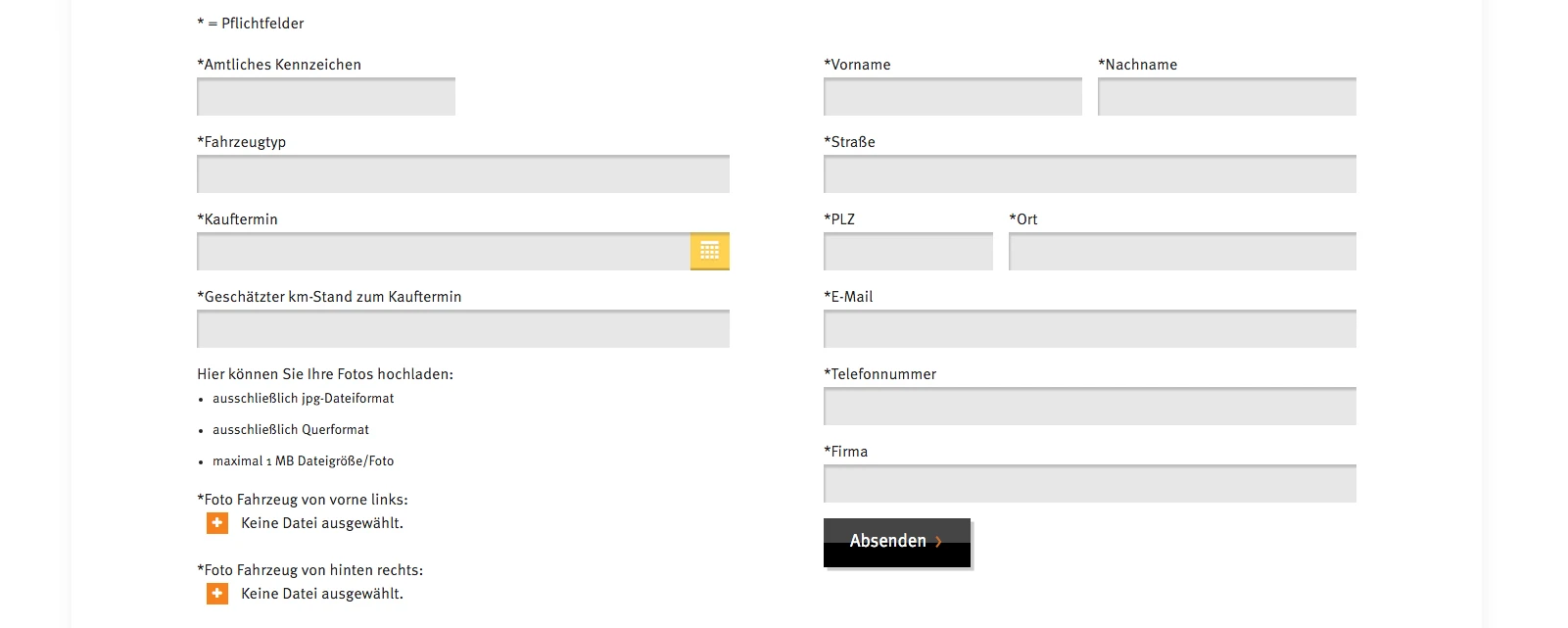
The new design of the fully responsive LeasePlan website called for multiple web forms on a single page. However, since forms typically cause the entire page to reload when submitted, adjustments were necessary. Reloading the entire page when submitting a form not only causes frustration due to the wait time. The amount of data transferred also plays a major role—especially given the growing number of mobile users.
Users gain no benefit from having the entire page reload when they submit a form. It’s rather frustrating to stare at a blank white page after submitting and wonder what’s actually happening.
Technically, this can be solved quite easily by submitting the form via Ajax. This ensures that only the entered form data is sent to the server. Consequently, the server’s response no longer needs to be the entire page, but only the form’s response. Of course, this can vary greatly depending on the requirements. In the event of an error, a clear error message should appear, and the form should highlight the fields that were filled out incorrectly. Upon successful submission, a success message should appear accordingly.
<form name="name-des-formulars" method="post" enctype="multipart/form-data">
    <div>
        <label for="name">Name</label>
        <input type="text" id="name" name="name-des-formulars[name]">
    </div>

    <div>
        <label for="document">Dokument</label>
        <input type="file" id="document" name="name-des-formulars[document]">
    </div>

    <!-- weitere Felder -->

    <div>
        <button value="submit" type="submit" onclick="yourJavaScriptFunction(clickEvent);" name="name-des-formulars[submit]">Absenden</button>
    </div>
</form>To upload a file, set the "enctype" attribute in the form to "multipart/form-data."
function yourJavaScriptFunction(clickEvent) {
    clickEvent.preventDefault();

    // Initialisierung weiterer Variablen

    var formPostData = new FormData(document.forms.namedItem('name-des-formulars'));


    jQuery.ajax({
        type: "post",
        url: requestURL,
        data: formPostData,
        dataType: "json",
        contentType: false,
        cache: false,
        processData: false,
        //...
For file uploads, we use theFormDataobject here, since otherwise the files will not be sent along with the request. In addition, the `contentType` and `processData` settings must be set to `false` for this purpose, since different formats (text, images, documents, etc.) are being transferred here. Furthermore, caching should not be enabled, as this involves individual user-specific data that cannot be cached.
Here at punkt.de, we use the Formhandler extension for web forms, among other tools, because it’s easy to customize and extend and offers a wide range of functionality. To submit Formhandler forms via Ajax, only a few adjustments are necessary:
First, we need our own `AjaxFileUploadHandler` that inherits from `Tx_Formhandler_AjaxHandler_JQuery`. This is necessary because we want to pass the data via the `FormData` object to enable file uploads via Ajax, and this feature is not yet configurable through Formhandler.
class Tx_PtFormhandler_AjaxFileUploadHandler_JQuery extends Tx_Formhandler_AjaxHandler_Jquery
{
    public function initAjax()
    {
        // der Code dieser Funktion aus der Eltern-Klasse sollte hier entsprechend dem obigen Beispiel angepasst werden
}While using your own AjaxHandler gives you full control over the code without having to patch the extension, you should compare the parent class with your own AjaxHandler during updates to prevent potential issues caused by code changes.
Next, the corresponding form needs to be converted to Ajax:
ajax {
   class = Tx_PtFormhandler_AjaxFileUploadHandler_JQuery
   config {
      jsPosition = footer
      ajaxSubmit = 1
      ajaxSubmitCallback = formhandlerCallbackOnAjaxSubmit
      submitButtonSelector = #my-form-id
   }
}
In this configuration, there are a few important aspects to consider regarding the use of Ajax:
With these few adjustments to web forms, you can optimize performance, load time, usability, and traffic (for both the client and the server). It’s an investment that pays off for both website operators and website visitors.