Cancel
Start searching

This search is based on elasticsearch and can look through several thousand pages in miliseconds.
Learn more


To save time when installing new servers and avoid errors, implementing a fully automated installation process for new systems was quite high on our list of priorities. Booting servers via PXE [1] is, of course, nothing particularly new. Running FreeBSD over the network is also quite well documented. [2]
What is new, however, is the unattended, fully automated provisioning of systems—from “bare metal” to a fully operational FreeBSD/ZFS-based hosting platform.
Modern remote management technologies like IPMI allow us to install a large number of servers “in reserve” in the racks and equip them with all necessary connections—while leaving them powered off. Once powered on remotely, the systems essentially install themselves, loading the management platform we currently use—Chef.io—and registering with the central Chef server. Further configuration (installed and active software, network configuration, user accounts) is then performed using Chef.
Booting a system running FreeBSD via network boot occurs in four phases:
The Preboot Execution Environment (PXE), which is integrated into the BIOS or the network card’s Option ROM, requests a locally valid IPv4 address via DHCP. The`next-server`and`filename`parameters in the DHCP response contain the information on exactly where the FreeBSD boot loader can be found.
The boot loader identified in the first step is loaded into the computer via TFTP, and control is handed over to it.
The bootloader then loads the kernel and any other specified modules. In FreeBSD, this—as well as the next step—is done via NFS instead of TFTP!
The kernel initializes the hardware as usual and then attempts to mount the root filesystem. Unlike most Linux distributions, which use RAM disks for this purpose in such environments—which are also loaded via TFTP—FreeBSD always uses NFS. This corresponds to the traditional “diskless” operation found, for example, on Sun Microsystems workstations. The kernel obtains the NFS server and path from the boot loader, which received this information via the DHCP option`root-path`.
N.B. There are a large number of “How-To” documents online that go to great lengths to avoid the need for NFS. These typically rely on external tools from the Linux ecosystem to create a RAM disk that is loaded via TFTP. In my opinion, these steps are unnecessary, since there is no reason not to use NFS within an isolated installation environment. Especially since this architecture simplifies many things down the line. (see below)
If the root filesystem can be successfully mounted,/sbin/initis called as in local operation, and the system boots as usual.
If you use an image of a FreeBSD installation medium as the root filesystem, the system will boot directly into the FreeBSD installer,bsdinstall.
This already allows for an interactive installation, just as when booting from a CD, DVD, or USB drive. However, if the installer finds a file named /etc/installerconfigin the root filesystem that contains the correct instructions, the installation can also proceed fully automatically until the newly installed server reboots and is ready for operation.
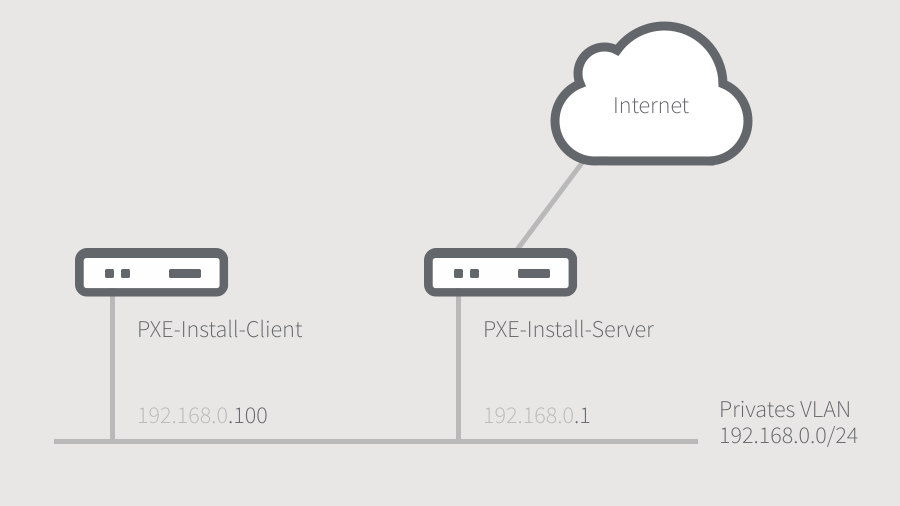
The installation takes place on an isolated private network. The PXE installation server performs the following tasks:
The latter is necessary so that the systems being installed can access Internet resources and other systems in our data center (package repository, Chef server, etc.). Implementing routing and NAT on the install server itself helps keep all required services consistently in one place.
In our sample implementation for this article, the entire setup runs within VMware Fusion on an Apple Mac laptop. A new network is created within VMware for the private VLAN. It’s important to note that VMware’s built-in DHCP server is not enabled here!
In my case, this network is namedvmnet2 in VMware.
Our installation server uses the same version of FreeBSD that we install on our hosting systems. As of now (May 2017), this is FreeBSD 11.0p10.
The installation server itself has two network interfaces. One of them is external with Internet access, and the other is on the private installation VLAN:
# Hostname des Systems
hostname="pxeinstall.intern.punkt.de"
# Innerhalb von VMware externe IP–Adresse per DHCP
ifconfig_em0="DHCP"
# Private IP–Adresse statisch (RFC 1918)
ifconfig_em1="inet 192.168.0.1/24"
/etc/rc.conf
In addition, the server must be configured as a router and NAT gateway:
# NAT aktivieren und externes Interface festlegen
firewall_enable="YES"
firewall_type="open"
firewall_nat_enable="YES"
firewall_nat_interface="em0"
# Routing aktivieren
gateway_enable="YES"
/etc/rc.conf
pkg install ca_root_nss isc-dhcp43-server bind910All other services are included in the FreeBSD base system.
The DHCP server is enabled globally:
dhcpd_enable="YES"
dhcpd_ifaces="em1"
/etc/rc.conf
and configured:
# Globale Parameter
default-lease-time 600;
max-lease-time 7200;

ddns-update-style none;
authoritative;
log-facility local7;

# Unser Installations-Netz
subnet 192.168.0.0 netmask 255.255.255.0
{
    option routers 192.168.0.1;
    option subnet-mask 255.255.255.0;
    option domain-name "intern.punkt.de";
    option domain-name-servers 192.168.0.1;
    use-host-decl-names on;

    # PXE-Boot Parameter
    next-server 192.168.0.1;
    filename "pxeboot";
    # Root-Filesystem per NFS
    option root-path "192.168.0.1:/var/pxeinstall";
}

# Jeder einzelne Hosting–Server hat ab hier einen statischen Eintrag mit
# seiner MAC-Adresse und einer individuellen IPv4-Adresse

# hosting00.intern.punkt.de
host hosting00 { fixed-address 192.168.0.100; hardware ethernet 00:0A:E4:88:AB:04; }
/usr/local/etc/dhcpd.conf
By omitting arangestatement from the DHCP configuration, only explicitly listed servers will respond to DHCP requests. This prevents systems from unintentionally performing a network boot and overwriting whatever is already on their hard drives.
The nameserver is enabled:
named_enable="YES"/etc/rc.conf
and configured—here, we ensure that it can only be accessed from the private network and not from the Internet:
listen-on { 127.0.0.1; 192.168.0.1; };/usr/local/etc/namedb/named.conf
The TFTP server service is easy to configure; it is integrated viainetd, which is restricted to the private address:
inetd_enable="YES"
inetd_flags="-wW -C 60 -a 192.168.0.1"
/etc/rc.conf
tftp dgram udp wait root /usr/libexec/tftpd tftpd -l -s /tftpboot /etc/inetd.conf
The TFTP directory is located within the PXE installation environment, which we will create in the next step. Therefore, we will first create a symlink:
ln -s var/pxeinstall/boot /tftpboot The environment that has already been provisioned via TFTP must now also be exported via NFS. In doing so, we ensure that the server is only accessible within the private VLAN:
rpcbind_enable="YES"
rpcbind_flags="-h 192.168.0.1"
mountd_enable="YES"
mountd_flags="-r -h 192.168.0.1"
nfs_server_enable="YES"
nfs_server_flags="-t -u -h 192.168.0.1"
/etc/rc.conf
/var/pxeinstall -ro -maproot=root -network 192.168.0.0 -mask 255.255.255.0/etc/exports
For the files that the hosting server “pulls” via TFTP, as well as for the NFS root filesystem, we need an up-to-date FreeBSD installation CD. We can download this from the usual servers or create it ourselves. One of the advantages of FreeBSD is that, with a single command, you can generate an installation medium from the source code of the entire system—one that not only includes the latest release version but also exactly the current patch level.
Assuming the installation server has sufficient time and processing power, the procedure is as follows:
1. Check out the source code
# "svn" Kommando bereitstellen, was das spaetere Update der Sourcen vereinfacht.
# "svnlite" ist im Basissystem enthalten.
mkdir -p /usr/local/bin
ln -s ../../bin/svnlite /usr/local/bin/svn

# Dem Build-System mitteilen, dass wir Updates zukuenftig per "make update" durchfuehren wollen
echo "SVN_UPDATE= yes" > /etc/make.conf

# Source von FreeBSD 11.0 mit aktuellem Patchlevel auschecken
svn co https://svn.freebsd.org/base/releng/11.0 /usr/src

# Updates koennen danach jederzeit so durchgefuehrt werden
cd /usr/src && make update
2. Build the system
This step takes a little while :-)
cd /usr/src && make buildworld buildkernelRun this once initially, and then run `make update` after every update to the source code.
3. Create the installation media
cd /usr/src/release && make NOPORTS=1 NOSCRC=1 NODOC=1 NOPKG=1 cdromThe result is a file nameddisc1.isoin the/usr/src/release directory.
Alternatively, you can download the latest release version from the documented servers. We’ll now continue using this disc image.
4. Mount and copy the root filesystem
mdconfig -a -t vnode -f /usr/src/release/disc1.iso
mount -t cd9660 /dev/md0 /mnt
cd /mnt
mkdir -p /var/pxeinstall && find -d -x . | cpio -pdum /var/pxeinstall
cd
umount /mnt
mdconfig -d -u 0
Next, you need to comment out a line in thefstab filefor this installation system—a line that is only necessary when booting from a CD:
# /dev/iso9660/11_0_RELEASE_P10_AMD64_CD / cd9660 ro 0 0/var/pxeinstall/etc/fstab
Enter the MAC address of the new hosting server indhcpd.conf(see above) and restart the DHCP server:
vi /usr/local/etc/dhcpd.conf
service isc-dhcpd restart
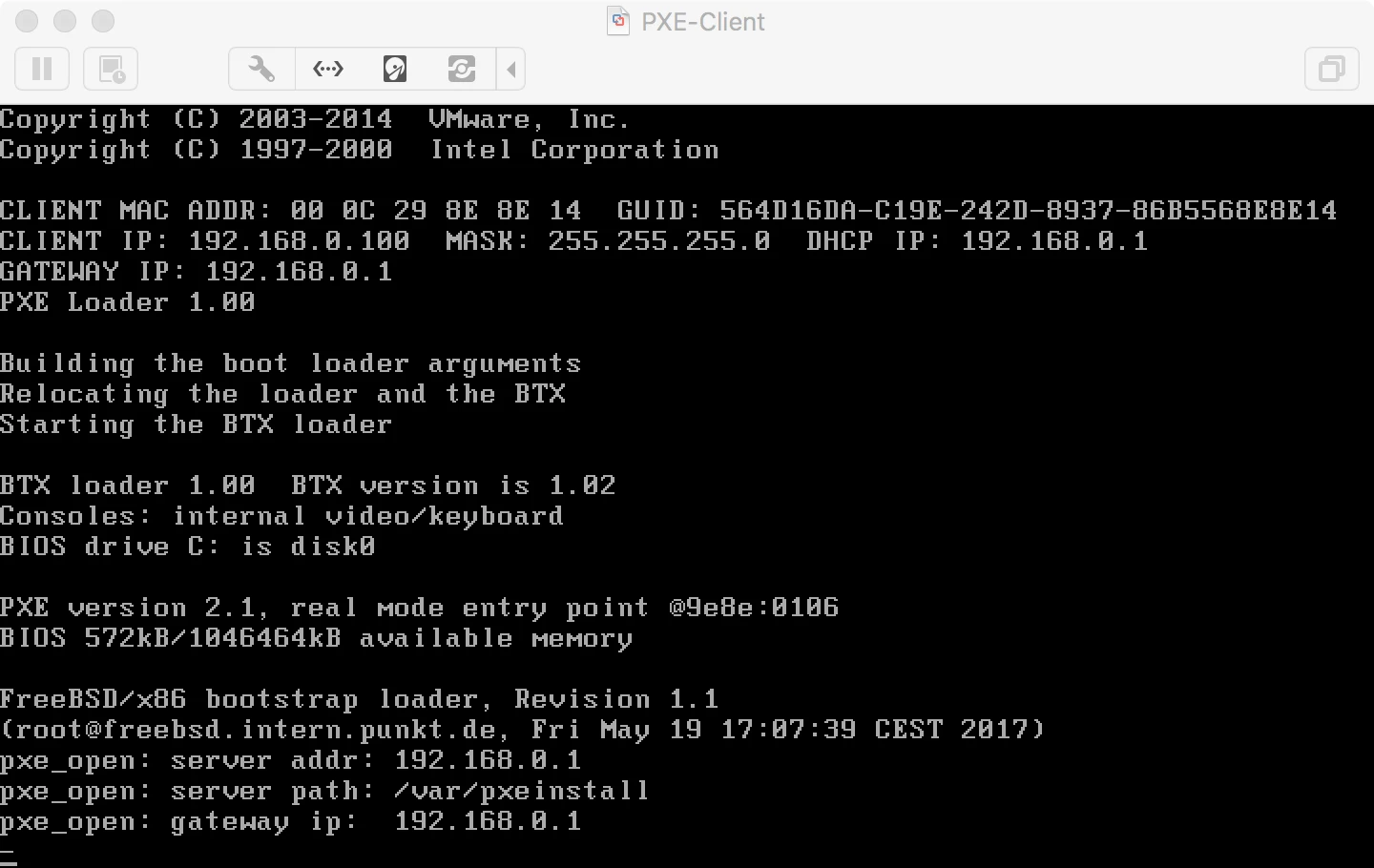
Then boot the new hosting server.
The result should look like this:
After a reboot, the system is now ready for an interactive network installation. It is recommended that you test this once.
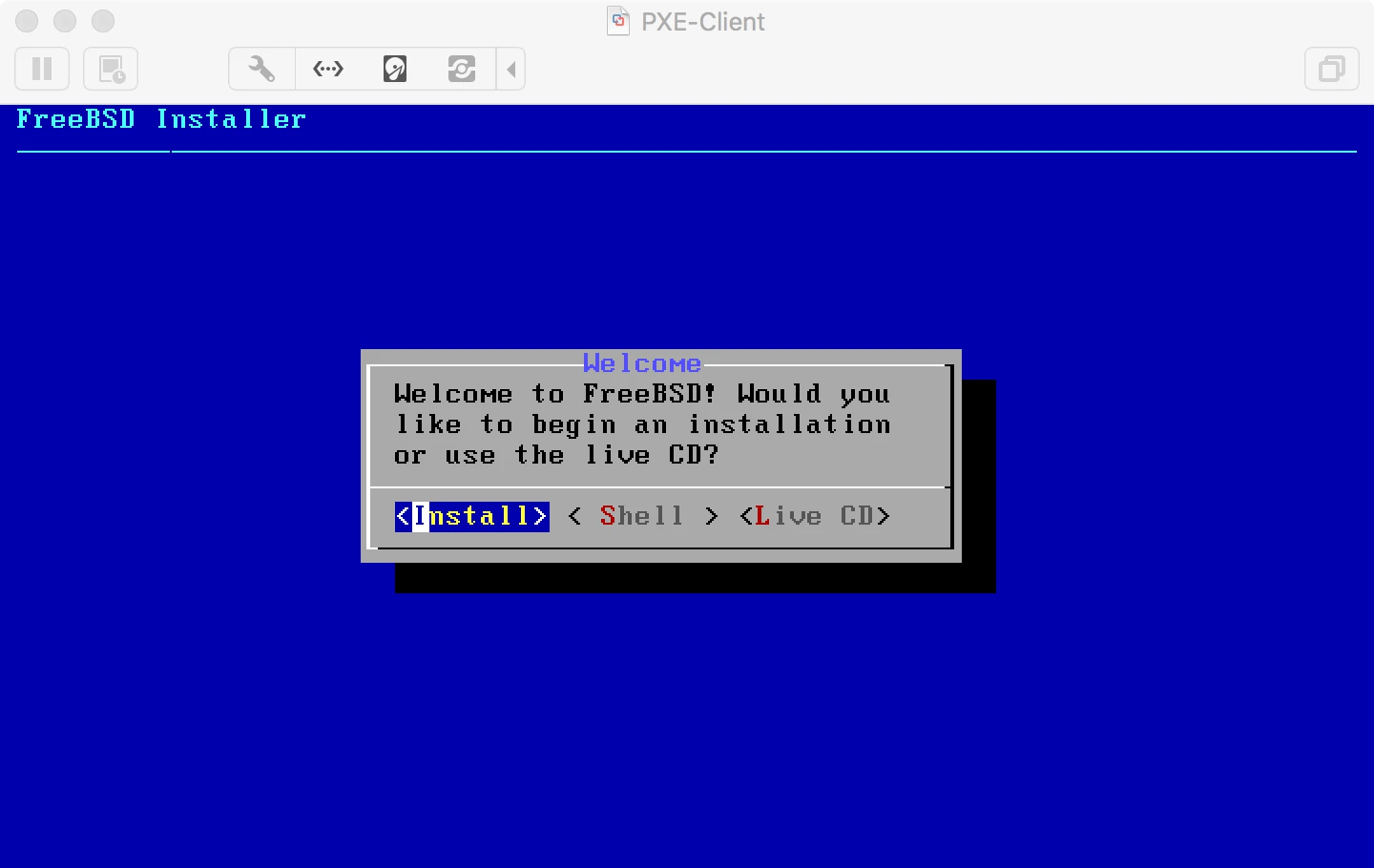
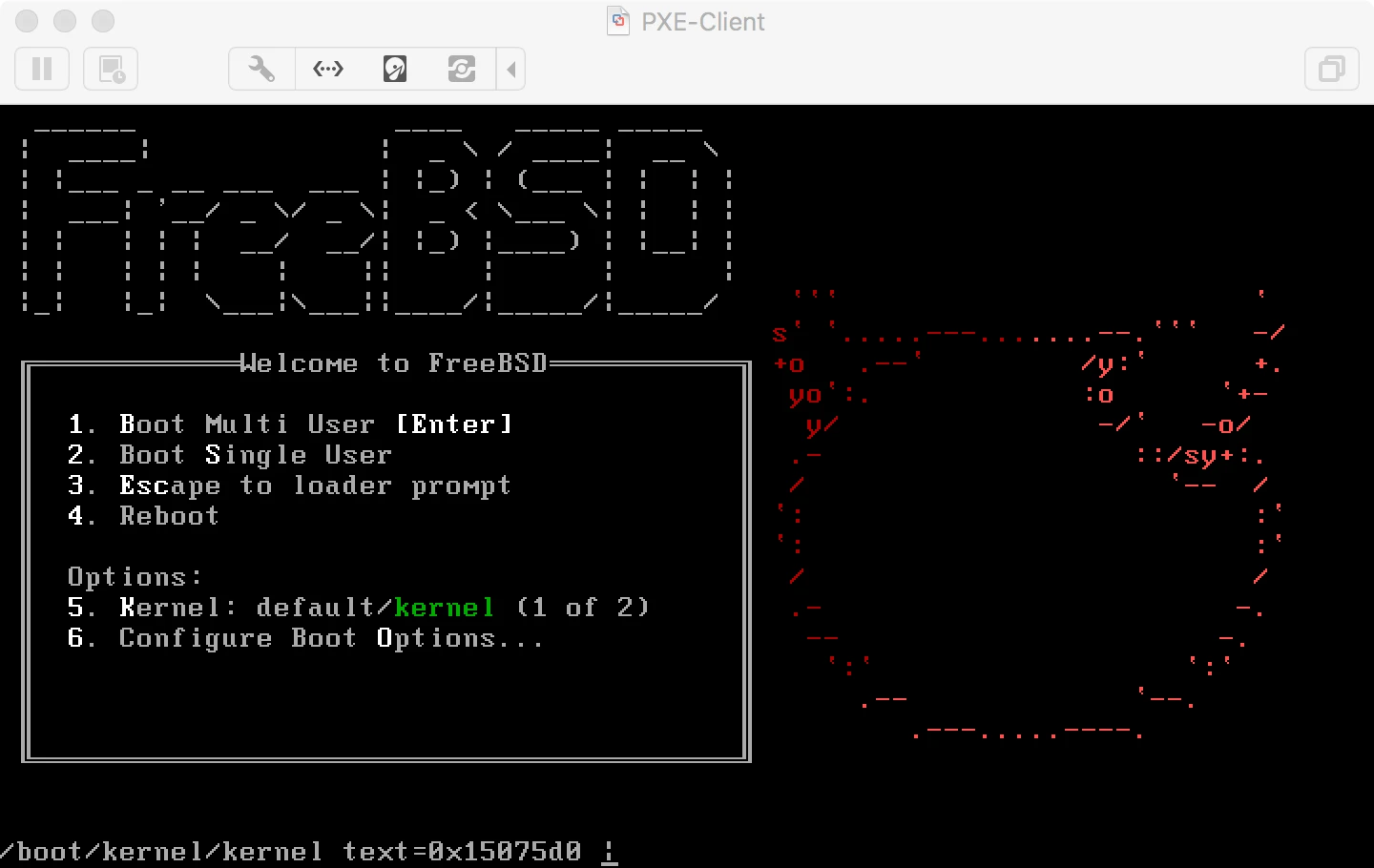
Congratulations! You have successfully set up a FreeBSD network installation server!
The "new" FreeBSD installer, called bsdinstall, searchesfor a file named /etc/installerconfig when it starts. If this file exists, it is read, and the instructions specified within it are applied. This allows for a completely unattended installation.
This is where the advantage of the NFS-based approach becomes apparent. The file can be easily modified on the install server, or one of several alternatives can be selected, e.g., for different hardware (hard drives, network interfaces, etc.). This change takes effect immediately in the installation environment; that is, the next time a server is booted for installation, it will always use the current file.
The file is written in shell syntax and consists of two parts. These are separated by a blank line. The first part defines variables that control bsdinstall. The second part is a shell script that is executed as the final action before the installation ends. In this script, we have complete freedom to do whatever is necessary, since the install server provides Internet access within the installation VLAN via NAT and DNS.
What needs to be installed?
DISTRIBUTIONS="base.txz doc.txz kernel.txz lib32.txz"/var/pxeinstall/etc/installerconfig
Which network interface is used for the installation?
INTERFACES="em0"/var/pxeinstall/etc/installerconfig
This refers to the interface of the server to be installed, which is also used to boot the server.
ZFS Disk Layout
export nonInteractive="YES"
export ZFSBOOT_DISKS="da0 da1"
export ZFSBOOT_VDEV_TYPE="mirror"
export ZFSBOOT_FORCE_4K_SECTORS="1"
export ZFSBOOT_SWAP_SIZE="8g"
export ZFSBOOT_SWAP_MIRROR="1"
export ZFSBOOT_POOL_CREATE_OPTIONS="-O compress=lz4 -O checksum=fletcher4"
export ZFSBOOT_BEROOT_NAME="ROOT"
export ZFSBOOT_BOOTFS_NAME="default"
export ZFSBOOT_DATASETS="
    /$ZFSBOOT_BEROOT_NAME mountpoint=none
    /$ZFSBOOT_BEROOT_NAME/$ZFSBOOT_BOOTFS_NAME mountpoint=/
    /tmp mountpoint=/tmp,setuid=off
    /usr mountpoint=/usr,canmount=off
    /usr/local mountpoint=/usr/local
    /var mountpoint=/var
    /var/db mountpoint=/var/db,canmount=off
    /var/db/mysql mountpoint=/var/db/mysql,recordsize=16k,atime=off,primarycache=metadata
    /var/db/mysql/logs mountpoint=/var/db/mysql/logs,recordsize=128k,atime=off,primarycache=metadata
    /var/db/pkg mountpoint=/var/db/pkg
    /var/tmp mountpoint=/var/tmp,setuid=off
    /home mountpoint=/home
"
/var/pxeinstall/etc/installerconfig
This creates a mirror pool on the two existing hard drives and sets up ZFS datasets as described. These are, of course, tailored to our specific hosting environment and may need to be adjusted. The hard drive device names may also differ. SCSI → da0, AHCI → ada0.
The instructions above must not contain any blank lines! A blank line would end the first part (the parameters) and start the second part (the shell script). The shell script can then be formatted as desired, including the use of blank lines.
In the shell script, we first create the file /etc.rc.conf in the installed system. Adjust the network interface accordingly!
#!/bin/sh
cat >>/etc/rc.conf <<EOF
keymap="de"
zfs_enable="YES"
ifconfig_em0="DHCP"
sshd_enable="YES"
netwait_enable="YES"
netwait_ip="192.168.0.1"
netwait_timeout="60"
EOF
/var/pxeinstall/etc/installerconfig
Next, we'll set the root password so we can log in via the console:
echo 'ROOT_PW_HASH' | pw user mod root -H 0/var/pxeinstall/etc/installerconfig
Of course,ROOT_PW_HASH should be replaced with the actual hash of the root password.
The ZFS logic for automated installation is still relatively new in FreeBSD. Therefore, the installer displays a dialog with debug information at the end. To ensure an automatic installation, we force a reboot:
# force reboot into new system
reboot
/var/pxeinstall/etc/installerconfig
You can then log in via the console and begin configuring the system. We useChef.io for this part, and we also automatically install its client using the `installerconfig ` script. The cron job created for the Chef client ensures that, after the reboot, the system registers with the Chef server, which then provisions the system by assigning an environment and a run list.
The hardware platform we currently prefer offers an excellently implemented serial console over IP. This is, of course, fully supported by FreeBSD (there was a time when all screens were serial terminals). The necessary changes to the setup described above will follow.
Once again, this clearly demonstrates the advantage of the NFS root filesystem. Changes to configuration files are easy to make on the installation server and take effect immediately. To set up a serial console via IPMI on COM1 at 9600, 8N1, make the following changes in the installation root:
console="comconsole"
beastie_disable="YES"
/var/pxeinstall/boot/loader.conf
Unfortunately, the default script on the FreeBSD installation CD insists on prompting the user interactively for the terminal type if it is not a local VGA console. This, of course, prevents an automatic installation. The solution—simply comment out the code:
[...]
else
    # Serial or other console
    #echo
    #echo "Welcome to FreeBSD!"
    #echo
    #echo "Please choose the appropriate terminal type for your system."
    #echo "Common console types are:"
    #echo "   ansi     Standard ANSI terminal"
    #echo "   vt100    VT100 or compatible terminal"
    #echo "   xterm    xterm terminal emulator (or compatible)"
    #echo "   cons25w  cons25w terminal"
    #echo
    #echo -n "Console type [vt100]: "
    #read TERM
    TERM=${TERM:-vt100}
fi
/var/pxeinstall/etc/rc.local
Specifically, this is about the statement " read TERM." Let's get rid of it :-)
These can be transferred to the target system via the script section of /var/pxinstall/etc/installconfig. We are currently using this code in the appropriate location:
echo "console=\"comconsole\"" >> /boot/loader.conf
echo "beastie_disable=\"YES\"" >> /boot/loader.conf
/var/pxeinstall/etc/installerconfig