Cancel
Start searching

This search is based on elasticsearch and can look through several thousand pages in miliseconds.
Learn more


With TYPO3 version 11, TYPO3 has introduced several new security features, such as multi-factor authentication (MFA), which has been available since v11.1. Multi-factor authentication can be integrated in just a few simple steps.
Furthermore, TYPO3 developers can create their own MFA providers (MFA API) or find additional ones in the TYPO3 Extension Repository (TER) in addition to the MFA providers included in TYPO3 v11.1.
This article focuses on the administration of the MFA providers included in v11.1: time-based one-time passwords and recovery codes.
Time-based one-time passwords and recovery codes are so-called MFA providers that offer a way to authenticate with the system. Multiple MFA providers can also be active at the same time, and this can be configured individually for each BE user.
To ensure th Backend users who are not TYPO3 admins can also use MFA providers, a TYPO3 admin must enable these MFA providers in a corresponding BE group that is assigned to the relevant BE users:
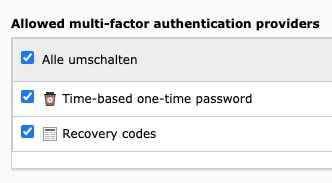
An MFA provider is managed in the User Settings module. Here, too, the TYPO3 administrator should ensure that this module is available to the BE user.
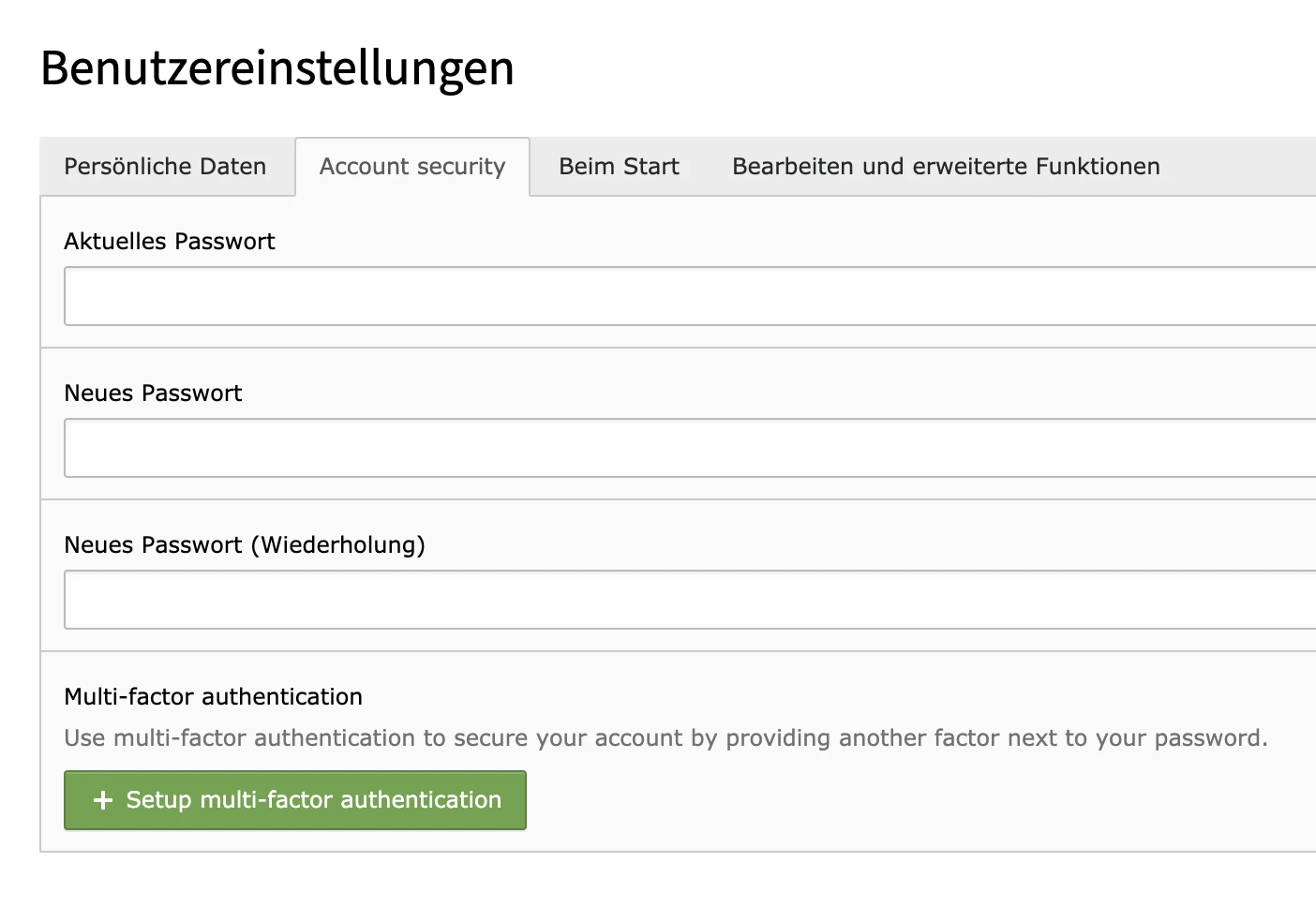
The "Account Security " tab contains the new " Multi-factor authentication" option, which, depending on the MFA status, displays either a button for setting up or a button for managing MFA providers:

The " Time-based one-time password " MFA provider requires a six-digit code during login that is valid for only 30 seconds. This requires an OTP (one-time password) app, such as Google Authenticator or 1Password, to display this six-digit code.
The " Recovery Codes " MFA provider is intended as a fallback in case the standard provider—in this case, the " Time-based One-Time Password " MFA provider—cannot be used for any reason (e.g., the smartphone or OTP app is not functioning).
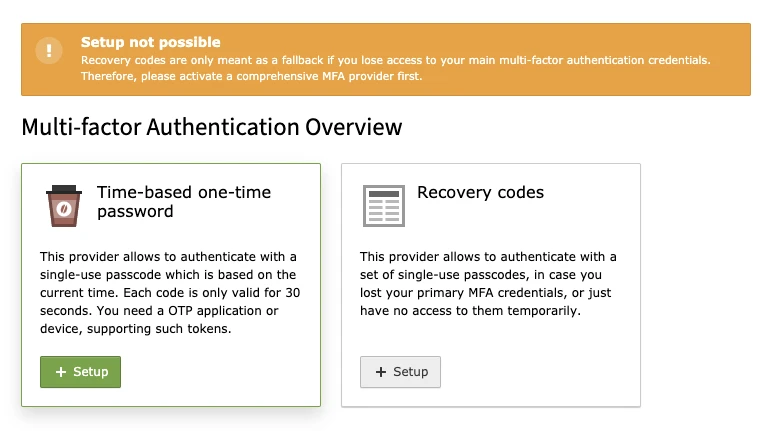
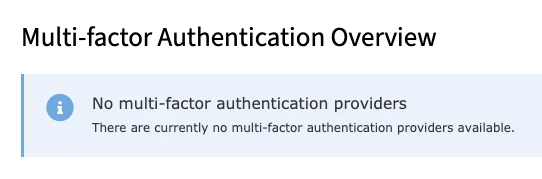
If the BE user sees the following image, it means they have not been granted permission by a TYPO3 administrator to activate an MFA provider (see also "Activating an MFA Provider"):
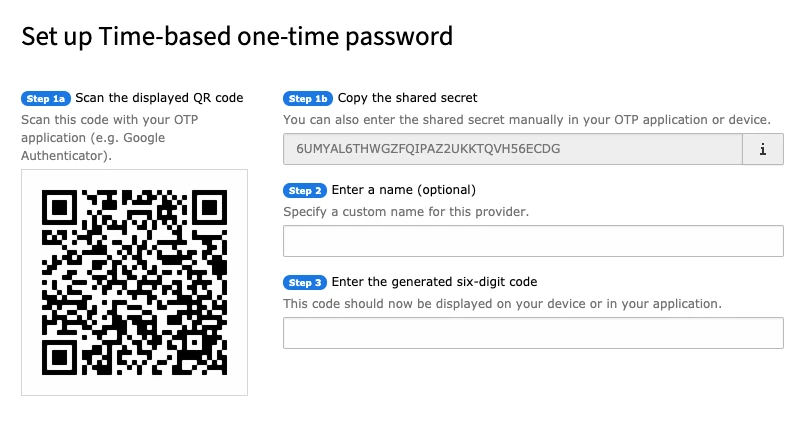
When setting up the time-based one-time password MFA provider, you'll need an OTP app—such as the Google Authenticator mentioned earlier—to scan the QR code and then enter the six-digit code in the "Enter the generated six-digit code " field:
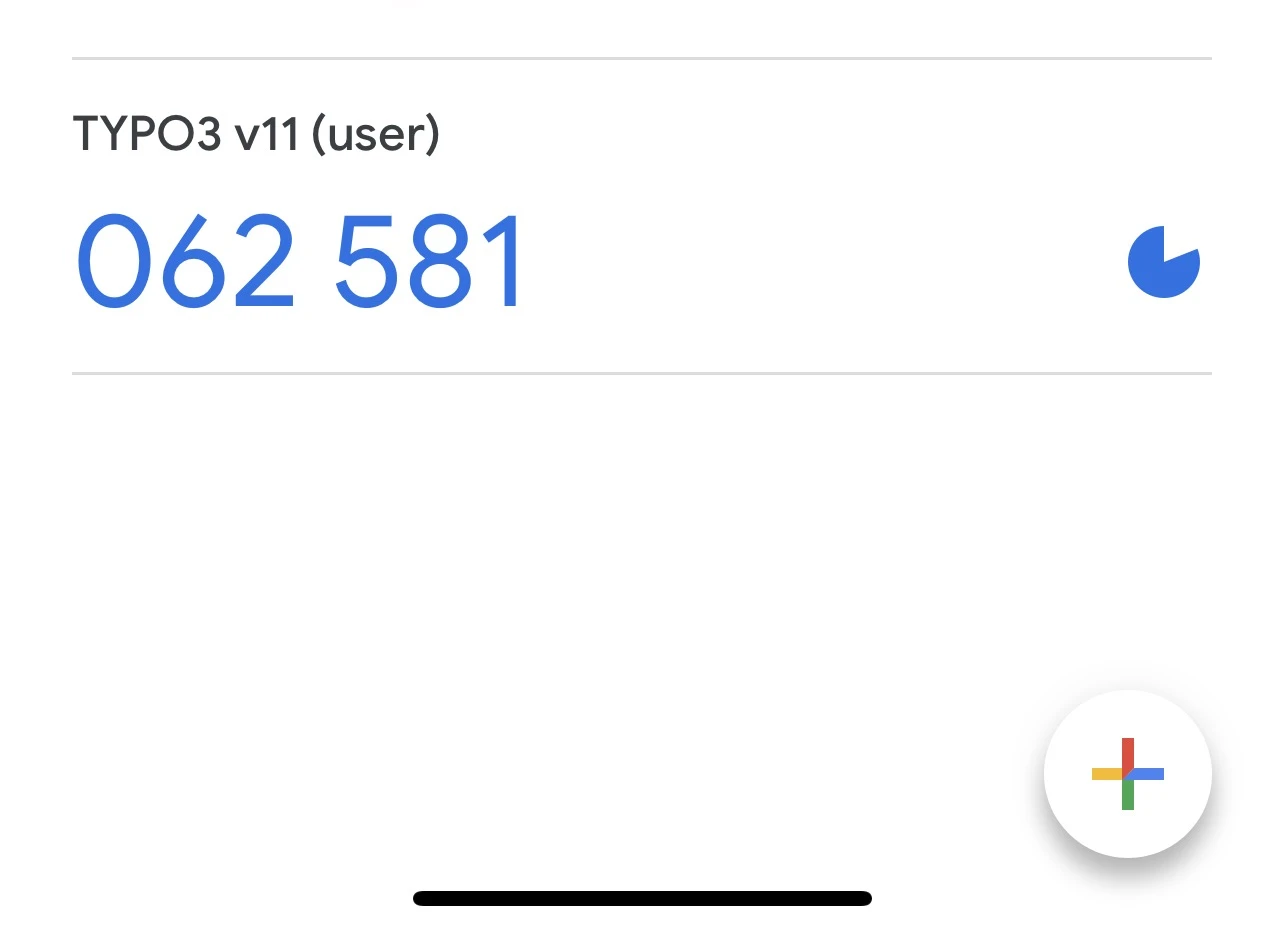
For example, in Google Authenticator, the TYPO3 site name (TYPO3 v11) and the BE user (user) appear in parentheses:
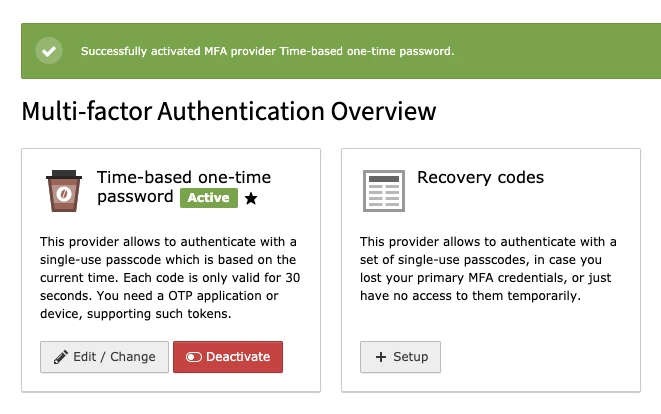
Once setup is complete, the MFA overview will reappear, and you can enable additional MFA providers or modify or disable those that are already active:
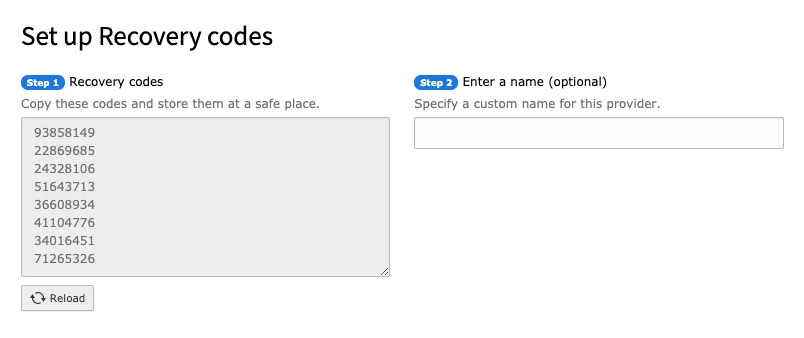
Now let's enable the Recovery Codes MFA provider as a fallback. This generates eight-digit codes that should be stored in a secure location. Saving the recovery codes may take a few seconds because additional encryption is applied—so don’t be surprised if the process doesn’t continue immediately after you save them:
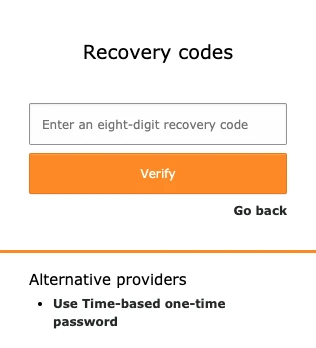
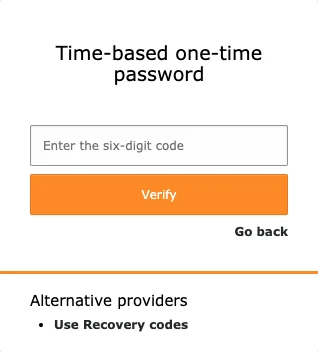
After activating the two MFA providers, when logging in to Backend, you will be prompted for a one-time password (time-based one-time password) after entering your username and password as usual. Additionally, other MFA providers are displayed; in our case, the recovery codes MFA provider:
If too many attempts to verify the user's identity with the appropriate codes have failed, TYPO3 will notify the user with a corresponding message:
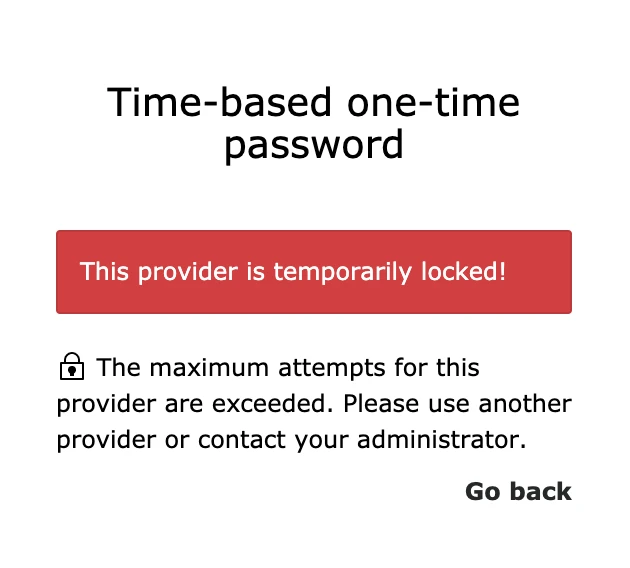
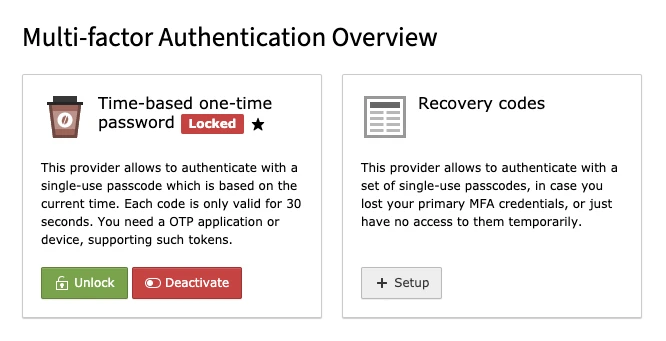
An MFA provider can be unlocked by a TYPO3 administrator, for example, by navigating to the corresponding user via the "Backend" user module and unlocking the MFA provider in the user settings, or the BE user can log in using an alternative provider (e.g., recovery codes) and then also unlock the blocked MFA provider in the user settings:
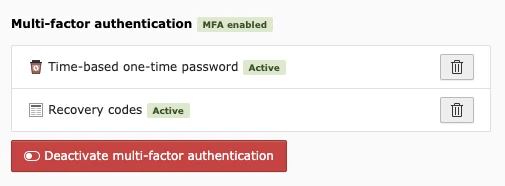
It is also worth noting that a TYPO3 administrator can delete or deactivate (but not unlock) MFA providers that have been enabled in the BE user record (General tab):
The official TYPO3 documentation at https://docs.typo3.org/m/typo3/reference-coreapi/11.5/en-us/ApiOverview/Authentication/MultiFactorAuthentication.html, additional configuration options are outlined, along with instructions for registering your own MFA provider via the MFA API.
You can find additional MFA providers in the TYPO3 Extension Repository by searching for "mfa": https://extensions.typo3.org/?L=0&id=1&tx_solr%5Bq%5D=mfa
As mentioned at the beginning, new security features have been integrated into TYPO3 v11, and another one I stumbled upon is the Rate Limiter (Symfony library). While testing the new MFA feature, I entered the wrong username and password too many times in quick succession, and I received the following message:

I was able to lift this lock by flushing the cache (Maintenance module) in the TYPO3Backend. However, this lifts all login locks—just a side note.
Both the Backend login and frontend logins are protected by this security feature, so that too many failed login attempts from the same IP address trigger a login lockout. Of course, this feature can also be customized, whether for the Backend login or the frontend login. An example for the Backend login:
$GLOBALS['TYPO3_CONF_VARS'][BE][loginRateLimit] = 5;
$GLOBALS['TYPO3_CONF_VARS'][BE][loginRateLimitInterval] = '15 minutes';
$GLOBALS['TYPO3_CONF_VARS'][BE][loginRateLimitIpExcludeList] = '';
You can find documentation on rate limiters here:
https://docs.typo3.org/c/typo3/cms-core/master/en-us/Changelog/11.3/Feature-93825-RateLimitingForFailedLogins.html