Cancel
Start searching

This search is based on elasticsearch and can look through several thousand pages in miliseconds.
Learn more


Note: If you are looking for instructions in English, please follow this link, which will take you to a README file containing information similar to that in this article: https://gitlab.pluspunkthosting.de/T3O/typo3.org
To contribute to the site (typo3.org), you’ll of course first need access to the codebase. You can get this by contacting Thomas Löffler, preferably via Slack. If you don’t have a Slack account yet, you can sign up here: https://forger.typo3.com/ and then message Thomas directly. Once you’ve been approved, you can set up a local development environment.
To help you get involved in developing typo3.org, we’ve provided a Vagrant project at https://git.punkt.de. However, to use it properly, you’ll need Vagrant (https://developer.hashicorp.com/vagrant/install) and VirtualBox (https://www.virtualbox.org/wiki/Downloads ). Vagrant saves you the trouble of configuring a local web server. Both Vagrant and VirtualBox can be downloaded and installed from the links provided.
If you encounter problems during installation, this may be related to the versions of the software you are using. Our Vagrant box has been tested with the following versions:
If you're unable to use these versions—for example, because you're already using a different version of Vagrant—please feel free to contact us at technik@punkt.de, and we'll see if we can find a solution.
To do this, clone our Git project from https://git.punkt.de and navigate to the folder that was created:
git clone https://gitlab.pluspunkthosting.de/T3O/typo3.org.git
cd typo3.org/
To start the VagrantBox, all you have to do now is run the following command:
vagrant upThis will download and start the box, and clone the typo3.org Git project into the box again. This may take a few minutes.
Next, connect to the box via SSH as the user "vagrant," navigate to the folder containing the cloned project, and run the initialization script once:
vagrant ssh
cd /var/www/t3o
./t3o.sh init
Composer will now install all of the project's dependencies and import the database contents. This process requires some user input:
After that, you can view the result directly at https://local.typo3.org/.
Note:The browser displays a certificate error—the site must be approved as an exception. The new typo3.org homepage should now be visible.
To actually make changes to the project and push them to the central Git repository, you must first make those changes locally. The following section uses PhpStorm as an example to explain how you can work conveniently with an IDE and the box.
So far, the project code has been stored both in the downloaded Vagrant box and somewhere locally on your computer—wherever you ran `git clone`. We prefer to work on the local copy, but the browser accesses the code in the box. That’s why we need a way to synchronize the local files with the box files as easily and automatically as possible. To do this, we’ll use PhpStorm’s deployment option so that changes made locally in PhpStorm are automatically uploaded to the box.
To set up deployment once, follow these steps:
1. Open the main folder of the cloned project in PhpStorm (i.e., typo3.org)
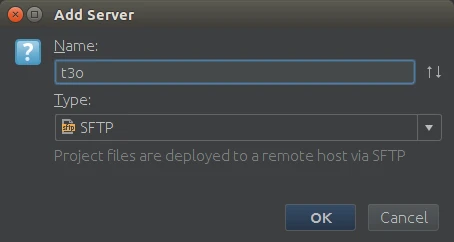
2. Set the configuration as shown in the following screenshot.
If you don't know the path to your private key, run "vagrant ssh-config | grep IdentityFile | awk '{print $2}'" in your preferred console and copy the output into the corresponding field.
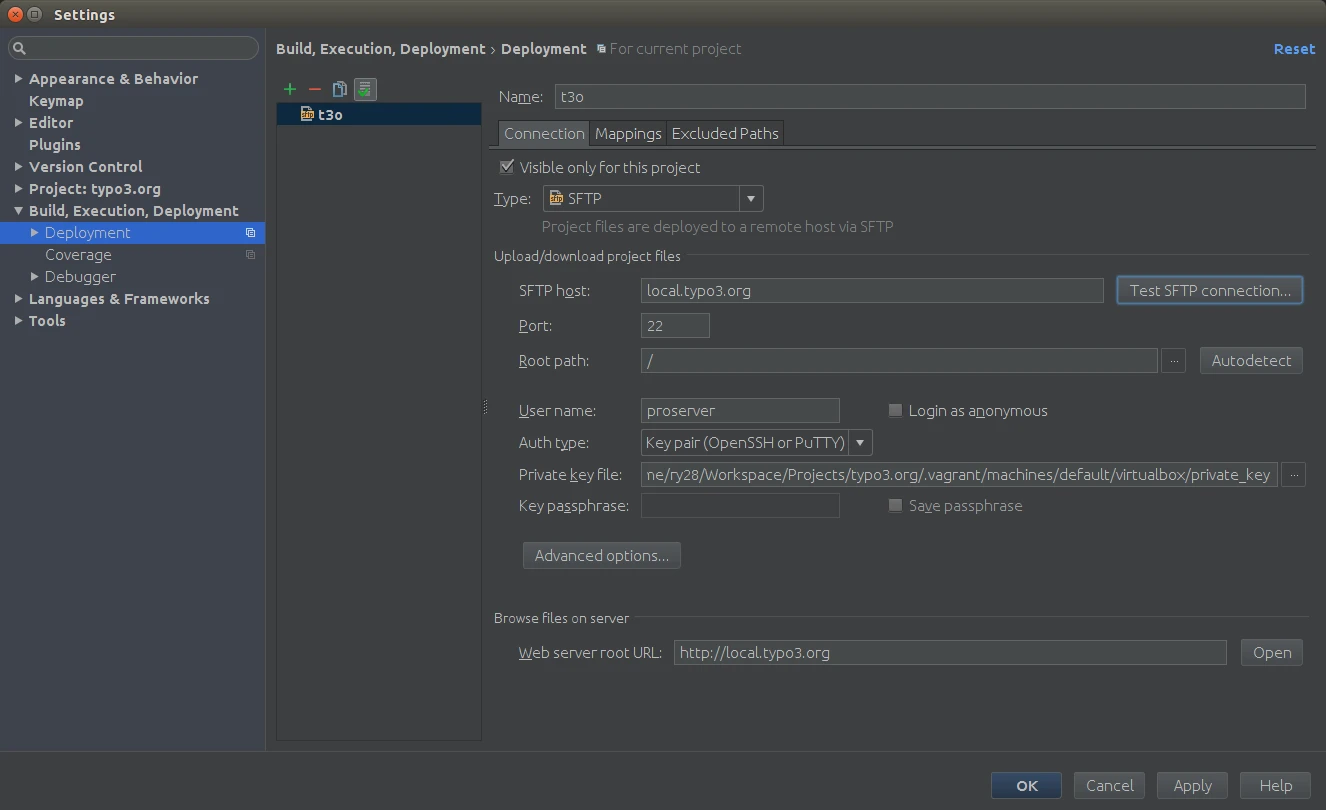
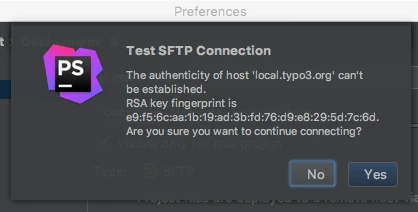
Then test the SFTP connection (click the "Test SFTP connection" button) and click "Yes" in the pop-up window to accept the connection.
3. Switch to the "Mappings" tab and adjust the deployment path as shown in the screenshot
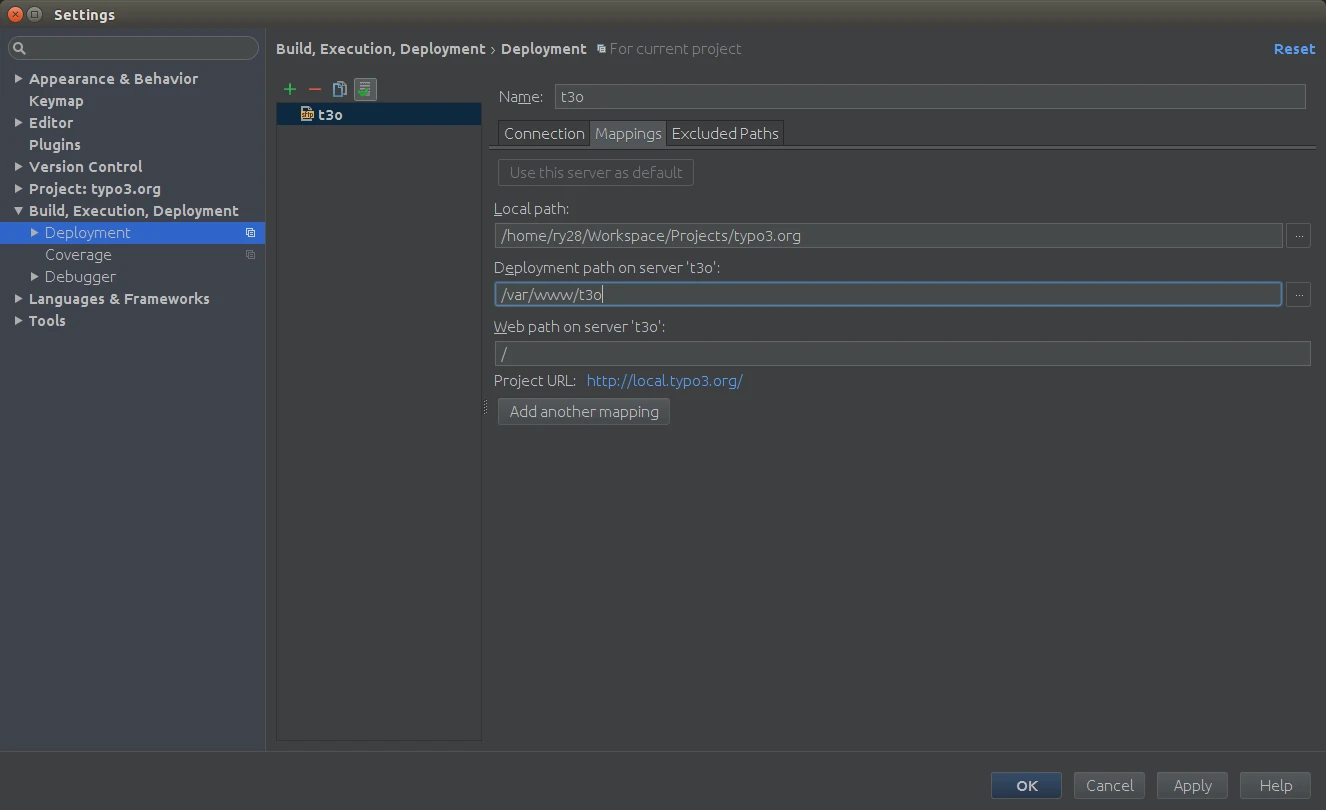
4. Customize the synchronization options (Deployment > Options).
The screenshot shows one possible configuration. It is particularly important to check the box next to "Upload external changes"—this ensures that changes made by Grunt are also detected when it is run in the IDE.
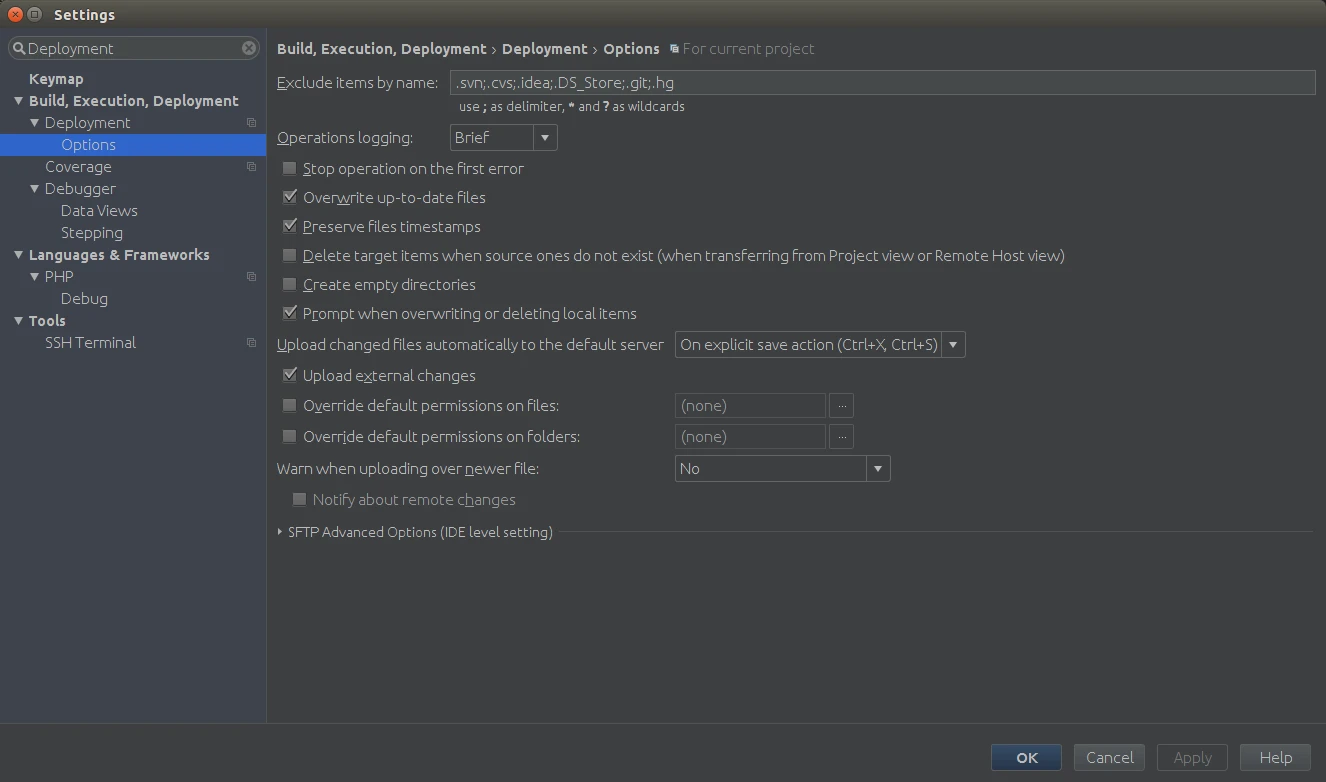
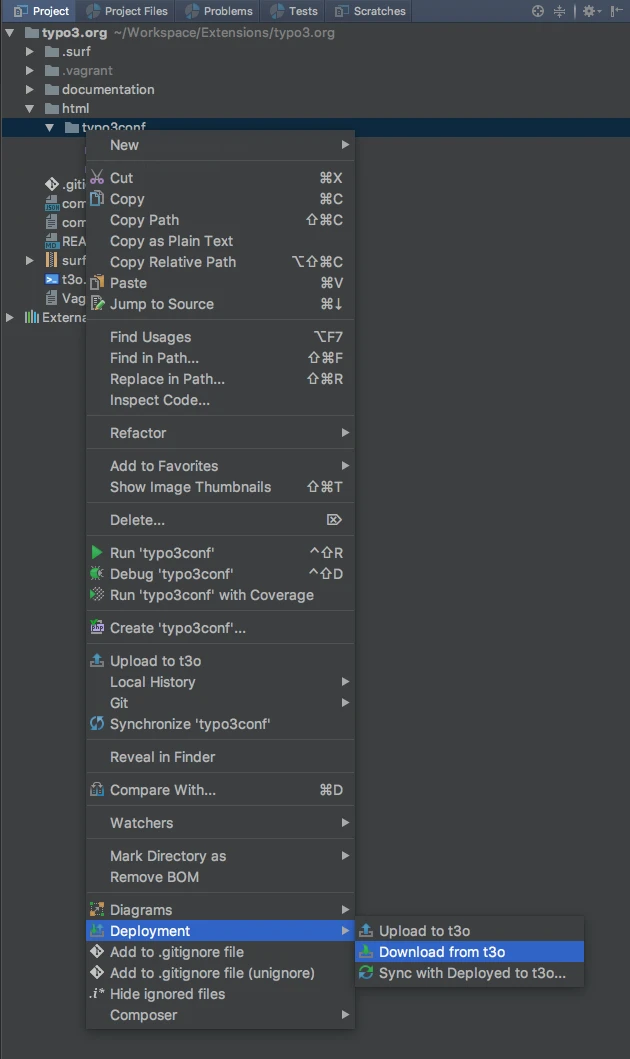
5. Copy the files added by Composer from the box to your local computer once
Then confirm that you want to overwrite the local files (Download from t3o). Aside from LocalConfiguration.php and PackageStates.php, you should not have any other files in this folder locally at this point.
(!) Warnings regarding files in ..../node-modules/..../.bin can be safely ignored.
The project uses Composer to install extensions, particularly the t3olayout extension. Grunt is used for the CSS and JavaScript build process. We recommend running both Composer and Grunt within the box to avoid version-related errors. The following workflow shows how to make changes to t3olayout:
1. Run `grunt watch` in your IDE or in the console within the box (access via SSH)
Consolein the box:
cd /var/www/t3o/html/typo3conf/ext/t3olayout/Resources/Private
./node_modules/grunt-cli/bin/grunt watch
2. Edit a file
e.g., typo3.org/html/typo3conf/ext/t3olayout/Resources/Private/SASS/Base/_colors.scss, and save it. Grunt should now detect the changes and rebuild the main.css file. The changes should also be visible in the browser after reloading the page.
SSH access as the "proserver" user
Go to the project's root directory:
cd irgendein/Pfad/typo3.org/Find the path to the private key:
vagrant ssh-config | grep IdentityFile | awk '{print $2}'If the call doesn't work this way:
vagrant ssh-config(In this edition, use the path after "IdentityFile")
Access the server via SSH:
ssh -A -i /path/to/private_key proserver@local.typo3.org3. Push your changes from the extension to the central Git repository:
In the box:
cd /var/www/t3o/html/typo3conf/ext/t3olayout
git commit
git push
Local:
Adjust the deployment options in PhpStorm so that .git is also synchronized, and work in the same folder as on the server.
4. On the server, in the project’s main folder, run the following command: "composer update t3o/t3olayout". This pulls the latest version of the extension’s repository into the main project and saves the corresponding Git commit to the composer.lock file on the server.
5. Copy the composer.lock file from the server to the local project: select the "Download from t3o" option (see screenshot for step 5 in the section above).
6. Push the composer.lock file from the main project to the central repository on GitLab using `git commit` and `git push`.
Congratulations! You can now actively participate in the development oftypo3.org.
P.S. After you've pushed changes to the master branch, only Thomas Löffler and Joachim Mathes can review and deploy them to the server.
Have fun trying it out!