Cancel
Start searching

This search is based on elasticsearch and can look through several thousand pages in miliseconds.
Learn more

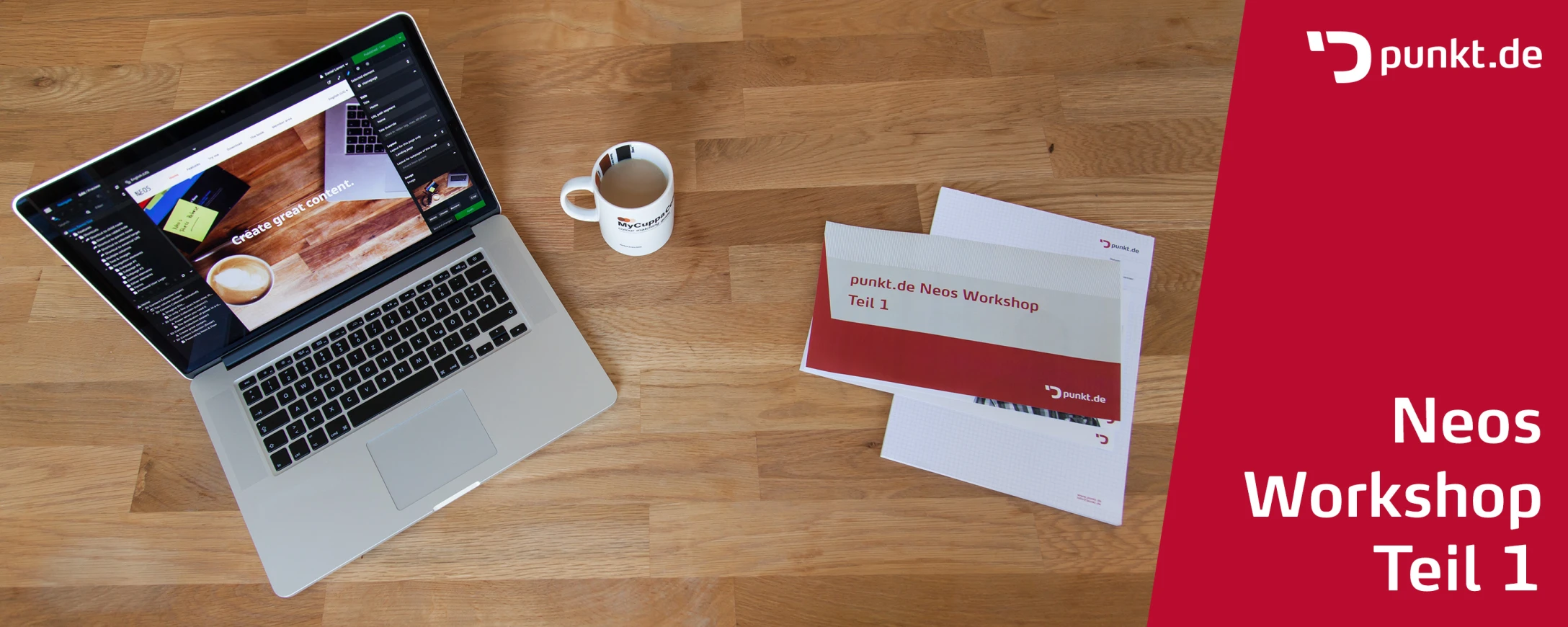
Originally developed by the TYPO3 community, the open source CMS Neos is now being further developed by an independent and growing community. Through the complete redesign of Neos, the CMS sets itself apart from existing content management systems through innovative concepts and the use of state-of-the-art technology.
These modern approaches have an impact on all disciplines that make up the work with the CMS. Editors have the option of editing content directly on the website. Due to the lack of abstraction of a backend module, editors have direct control over the effect of their content while editing.
The powerful content repository with which Neos manages the content internally gives the integrator the ability to customize content types to the customer's requirements and to define them in a semantically meaningful way. Due to the endless possibilities offered by the definition language for content types with YAML, logic description with Eel and Flowquery and the template engine Fluid, it is rarely necessary to resort to third-party extensions or in-house development in PHP.
If in-house developments in PHP are nevertheless necessary for complex requirements, the developer can expect a modern, tidy and modular CodeBase. The Flow application framework on which Neos is based supports programmers with modern paradigms such as domain-driven design and aspect-oriented programming when creating high-performance applications.
But admittedly, access for newcomers to Neos could be much easier. This is exactly what I would like to achieve with this multi-part workshop, the parts of which will be published every two weeks. In this article, we will start with the setup of a local development environment, as well as the installation and description of the basic structure of the CMS interface. In the subsequent articles, we will start designing our own website with our own content types.
Before we can start with the actual installation of Neos, we first need an environment in which all the requirements for the CMS are met. Such a development environment, consisting mainly of a web and database server, as well as other tools and configurations, is a complex system that is difficult to set up on the operating system of your own computer. We therefore want to work with a virtual system here. We use the virtualization software VirtualBox together with the management tool Vagrant.
Using virtualization software offers several advantages. The files of the host system used are not changed - so we can try things out without running the risk of damaging other applications on our operating system. The virtual environment we use can be created reproducibly and, in the event of a misconfiguration, can be restarted from scratch at any time. This also means that we work in an environment that corresponds exactly to the one we will later find on the production server.
In the first step, we download the latest version of VirtualBox and Vagrant to match our operating system and run the installation programs for VirtualBox and then Vagrant.
Once the virtualization tools have been successfully installed, the prerequisites for downloading and starting the Neos Box are in place. The box that we will use in this workshop is based on the software that we also use in our hosting and is particularly suitable for working with modern PHP-based CMS. Based on the free operating system FreeBSD, the latest versions of the necessary server software are available. You can find all the details about the box on this page.
To download the Neos Box, we open a console and create a new folder in our home directory of the host system, which wecall vagrant-neosbox:
mkdir ~/vagrant-neosbox
cd ~/vagrant-neosboxIn this article we can unfortunately only describe how to set up the Neos Box under Linux and MacOS X, as these are the operating systems we use on a daily basis and with which we are familiar. However, Windows can also be used as a host platform for our Vagrant Box. You can find a detailed description of this operating system here, for example.
In this folder we execute the following command:
curl -O https://github.com/punktDe/proserver-neos-box/blob/master/Vagrantfile && vagrant upThis downloads a prepared VagrantFile, which contains all the settings for our box. The box is then downloaded from our server with vagrant up and the box is started. This can take a few minutes.
Once the box is started, we can also open a shell on it using SSH.
The command:
vagrant sshexecuted in the same directory where the VagrantFile is located, takes care of the login for us.
Congratulations! We have now created a perfect environment for our work with Neos.
With the vagrant command, the box can be started (vagrant up), shut down (vagrant halt) or restarted (vagrant reload) at any time.
With the Vagrant Manager, this is even more convenient on the Mac.
Now we can start downloading the Neos packages. In the box, we navigate to the already prepared directory of the web server and delete the existing test page. Using git, we clone the Neos Base distribution in the current stable version.
The Packet Manager then takes care of downloading the necessary PHP sources. This process also takes a moment.
cd /var/www
rm -rf Web
composer create-project neos/neos-base-distribution .
Once the PHP packages have been downloaded, we can now open the setup page of our box at http://172.17.28.28/setup with any browser and carry out the individual steps of the installation.
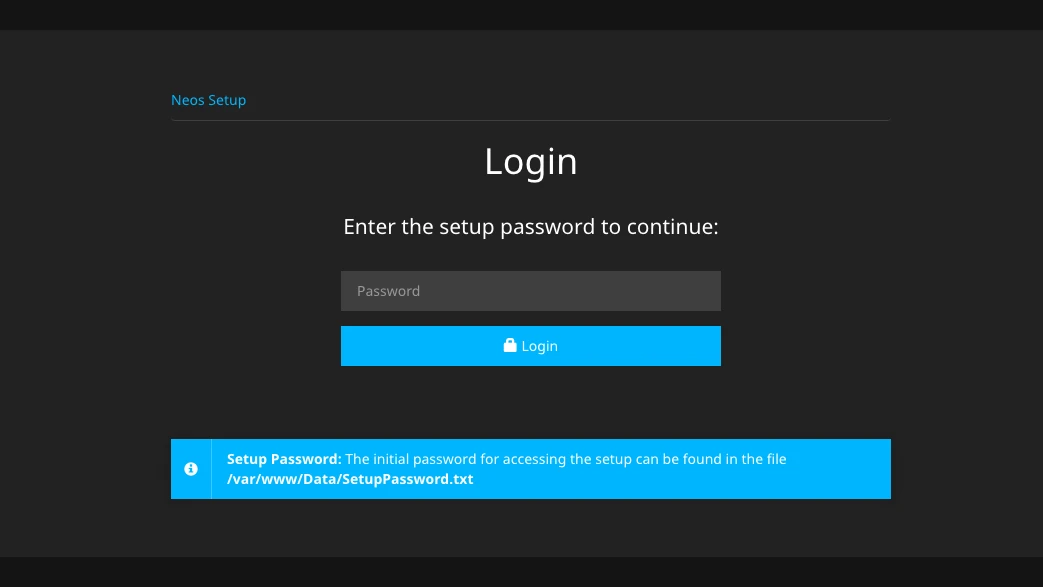
First we have to authenticate ourselves with the password, which we can enter via the console with the command:
cat /var/www/Data/SetupPassword.txtreceived.
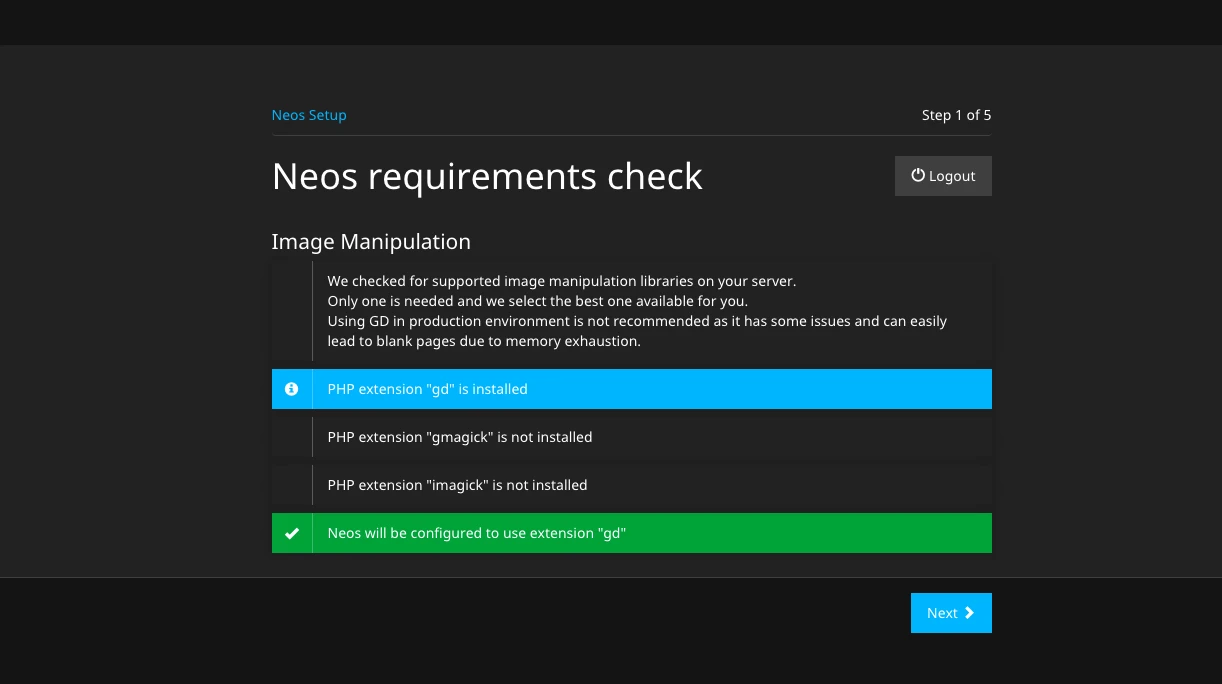
The page that appears after successful login shows us an overview of the installed graphics libraries. Click on Next to switch to the database configuration. Here we enter "neos" as the user and password and select the database of the same name at the bottom.
On the next page, we create our initial administration user.
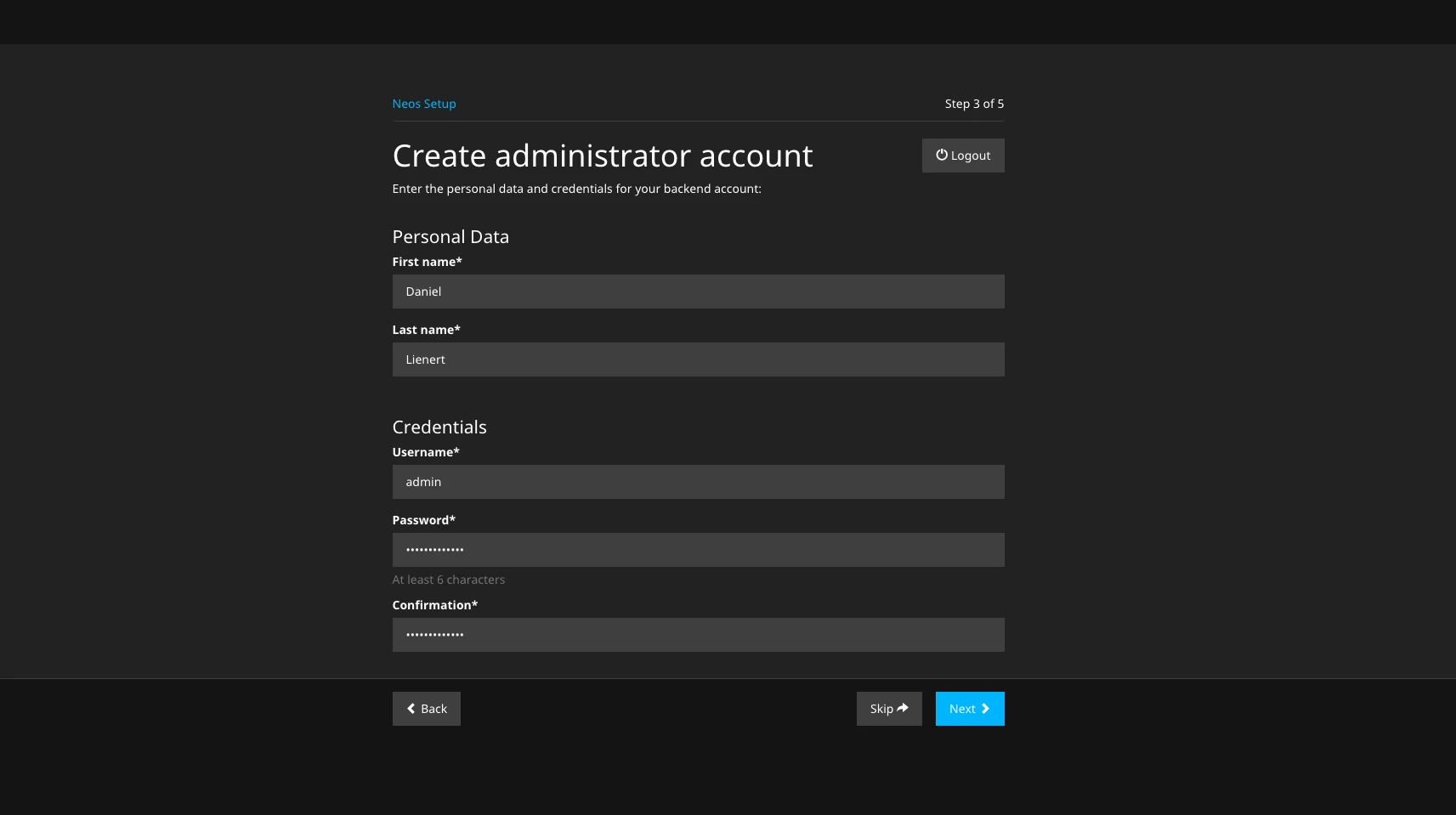
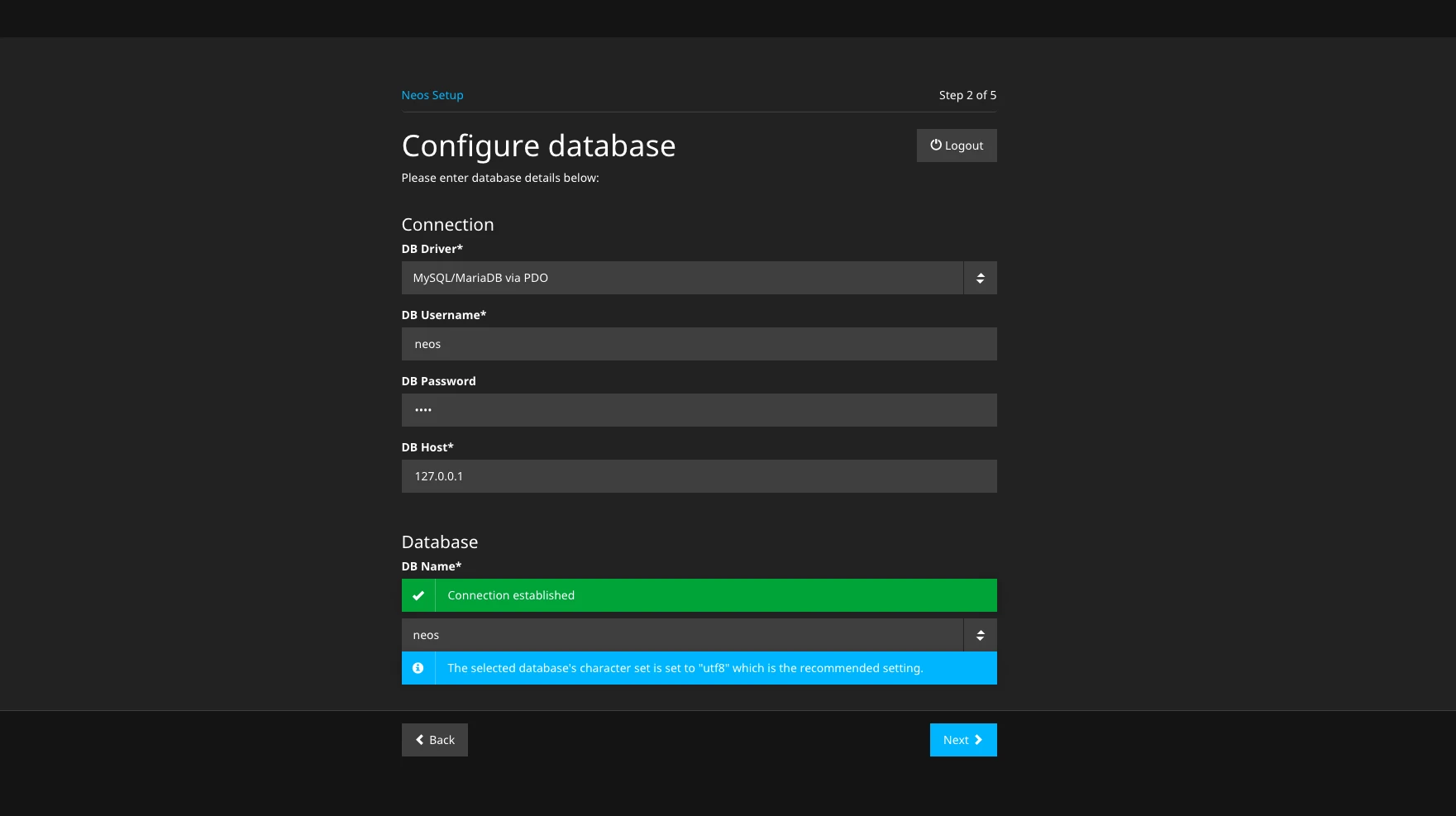
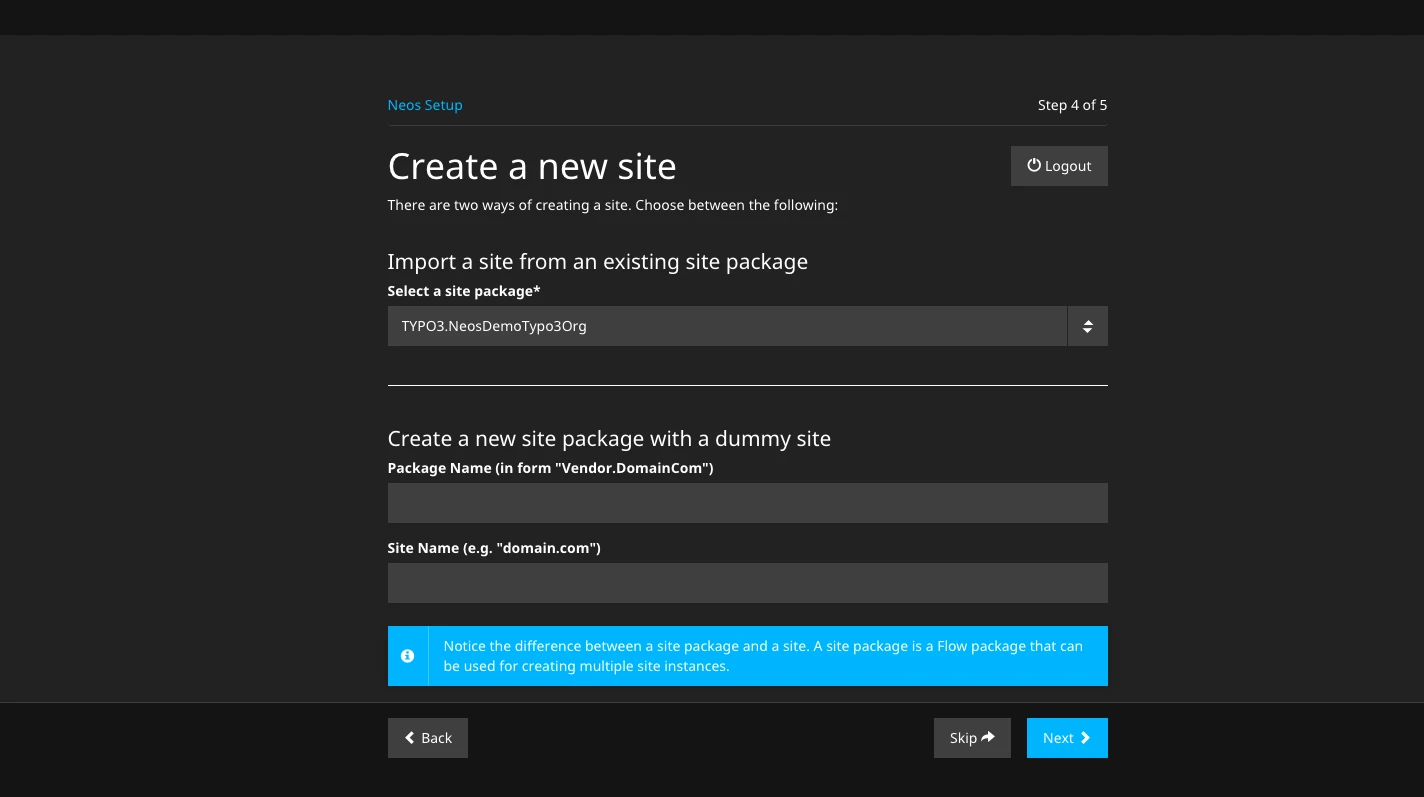
In the next step, we have the option of either installing the demo site package included in the basic package or creating a new one.
A site package contains all the files that make up the layout and basic functions of a page, such as HTML, CSS, TypoScript or graphics.
To make it easier for us to get started with the system, we import the pre-selected demo package and complete the installation process by clicking on "Next".
This completes the installation. Clicking on "Go to the backend" takes us to the backend login screen where we can log in with the user we created during setup. Later, we can access the backend at any time by appending /neos to the URL of the page.
The functions of the backend are briefly explained below. I will describe some of the modules in more detail in later articles.
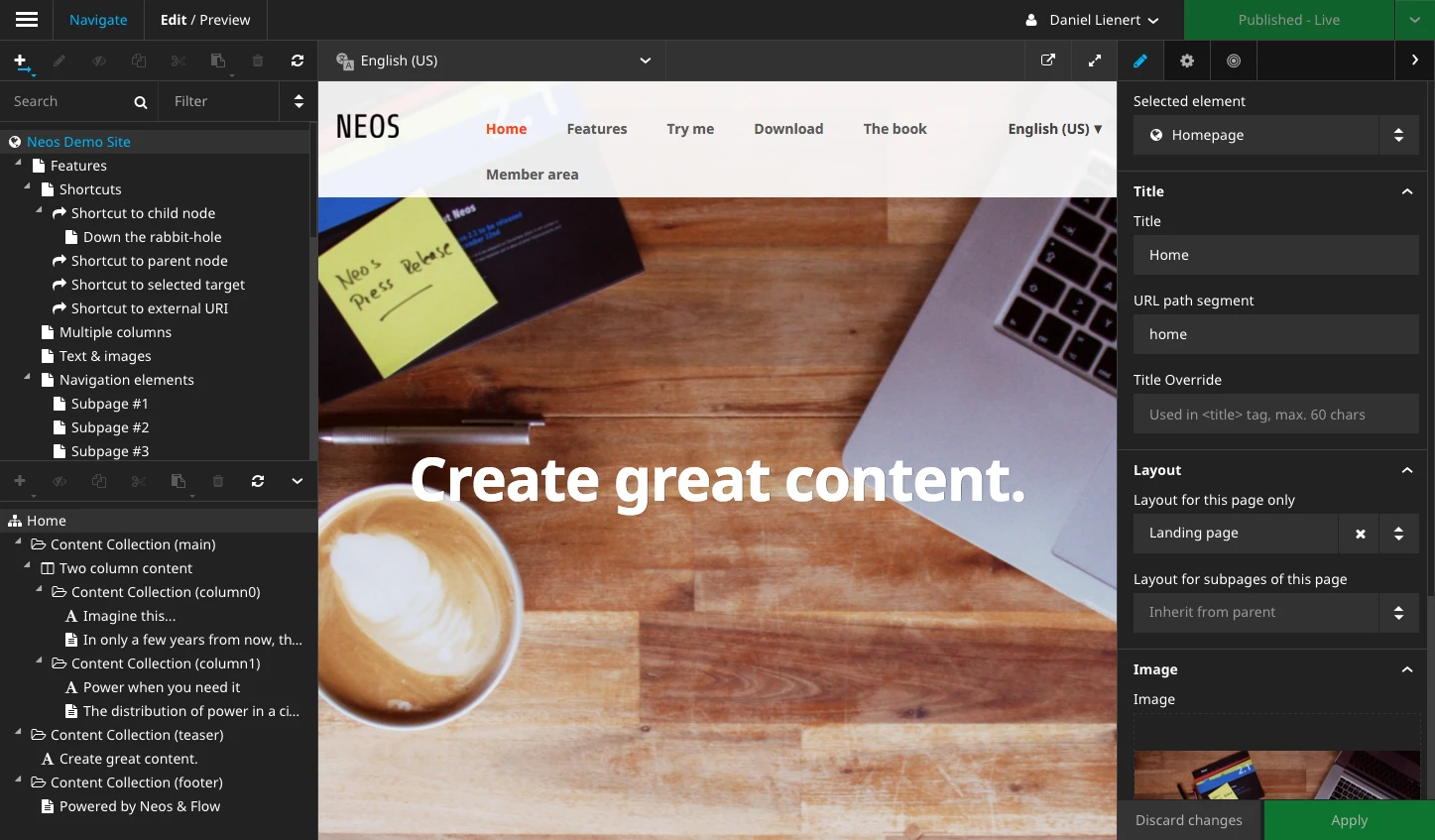
When logged into the backend, the page appears framed by the editing elements of the backend. Let's start with the left sidebar, which is used to navigate and structure the content. The upper part is dedicated to the pages. The toolbar above the page tree can be used to create new pages and copy, hide or delete existing pages. Below this are search and filter elements that directly limit the entries in the page tree. Of course, it is also possible to navigate directly to the pages via an existing menu in the content.
At the end of the sidebar, the structure tree of the page can be collapsed, which displays all content elements of the page in a hierarchy. Although all operations that can be seen here can also be carried out directly in the content, working in the structure tree can be clearer depending on the use case. For example, rearranging the content can be done more easily here.
The content of the page can be seen in the middle section - in the focus of the editor. By clicking on a text, for example, it can be edited directly inline. If selected, control elements also appear at the top of the content, which have a direct effect on the selected content. Above this, we see a selection menu that allows us to edit different dimensions of the content. In our case, it is possible to edit content in other languages here.
The so-called Inspector is located in the right-hand sidebar. It shows the properties of the selected page or content that cannot be edited directly inline. This includes properties such as the type of element, the start and end date for the time restriction of the content as well as meta information, such as the title and alt tag of an image.
Workspaces
The module displays a list of available workspaces. This list contains the personal workspace of the user currently logged in, as well as all shared workspaces. New shared workspaces can be created. The "Review" button can be used to view and approve changes to a workspace.
Media
All media used in Neos can be managed via the Media module. Media can be uploaded via selection or drag & drop and tagged to maintain an overview. A search function as well as filter and sorting options make it easy to find the desired media, even with larger data sets.
The modules under Administration will probably only rarely be visited when working with Neos. I will therefore keep the description here brief.
If you have any comments or questions about the content of the articles, please use the comments function at the bottom of the page.
Want to continue right away? Click here for the second part of the workshop where we start building your own website with Neos.
Have fun trying out Neos!
Just as easily as you installed Neos in your virtual machine, you can do the same on our proServer!
We will be happy to make you an offer! Write to us at vertrieb@punkt.de
We would be happy to advise you! Write to us at vertrieb@punkt.de