Cancel
Start searching

This search is based on elasticsearch and can look through several thousand pages in miliseconds.
Learn more

In the first part of the Neos workshop, we have already created a virtual environment for the CMS and familiarized ourselves with how the backend works. With this part, we now want to start implementing our own project in Neos. The presence of a local wine store will serve as an example project.
Every new page in Neos starts with the creation of a new site package. The site package contains all the parts that make up the appearance and basic functions of the site. To be able to start fresh, we remove both the content and the site package of the already installed demo site. The easiest way to do this is via the command line interface of Flow - Flow is the application framework behind Neos.
To do this, we branch to the Vagrant folder on our system that we created in the last workshop ("cd ~/vagrant-neosbox") and start the virtual machine there with "vagrant up". Then we log in to our virtual machine with "vagrant ssh", navigate to the project folder(/var/www) and execute the following commands:
Note: The following ./flow commands are case-sensitive!
./flow site:prune
composer remove neos/demo

./flow kickstart:site WL.WeinLaden weinladen.local
./flow site:import WL.WeinLaden
In the first line, we use site:prune to delete all content and pages of the demo site from the database (you will now receive an error message at http://http://172.17.28.28/; this is correct). With package:delete we then delete the package of the demo site and remove it from the list of packages installed via composer.
Now we create our new, empty site package with kickstart:site and give it the vendor name WW and the package name WhiskeyWorld. With the site:import in the last line we import the root-page which is necessary for displaying the page.
The Flow command line offers many more useful commands. The complete list is displayed by the command ./flow help.
For a detailed description of the commands, including all parameters, use the command
./flow help <commandName>.
The Kickstarter creates a number of directories and files in the Packages/Sites/WL.WeinLaden directory, the meaning of which I would like to briefly describe.
.
|-- Classes
|-- Configuration
|   `-- NodeTypes.yaml
|-- Resources
|   `-- Private
|       |-- Content
|       |   `-- Sites.xml
|       |-- Templates
|       |   `-- Page
|       |       `-- Default.html
|       `-- Fusion
|           `-- Root.fusion
|-- Tests
|   |-- Functional
|   `-- Unit
`-- composer.json
If PHP classes are required for the implementation of the page, these are stored under Classes and automatically loaded from there. The Configuration directory already contains a file "NodeTypes.yaml" which can be used to define your own content types.
Resources/Private contains files that are required for the project but should not be accessible from outside. Among other things, a rudimentary template file and a file for fusion code have already been created here.
In order to be able to develop comfortably on our site, we recommend using an IDE that can at least handle syntax highlighting of the common web languages. This could be the lightweight SublimeText or the powerful PHPStorm, for example.
To be able to work on our site with an IDE, it is best to copy the files to a local folder. To do this, we change to the vagrant directory(~/vagrant-neosbox) and execute the following, somewhat unwieldy command, which copies the files to the neos-workshop folder in our home directory:
rsync -avP --rsh="ssh -i "$(vagrant ssh-config | grep IdentityFile | awk '{print $2}')"" vagrant@172.17.28.28:/var/www/Packages/Sites/ ~/neos-workshopChanges that we make to the SitePackage during the workshop should ideally be copied back into the box automatically. Vagrant provides an elegant solution for this. To use this, we edit the Vagrantfile in our Vagrant folder(~/vagrant-neosbox) and add the lines 5 and 6 highlighted below.
The new lines mean that changes in the neos-workshop folder are automatically recognized by Vagrant and copied to the right place in the box via rsync.
Vagrant.configure("2") do |config|
  config.vm.box = 'punktde/workshop'
  config.vm.box_url = "https://punkt.de/Download/workshop.box"
  config.vm.synced_folder '.', '/vagrant', id: 'vagrant-root', disabled: true
  config.vm.synced_folder "~/neos-workshop/", "/var/www/Packages/Sites/", type: "rsync",
    rsync__exclude: ".git/"
  config.vm.network 'private_network', ip: '172.17.28.28'
  config.ssh.forward_agent = true
  config.vm.provider 'virtualbox' do |vb|
    vb.memory = '4096'
    vb.cpus = '1'
    vb.name = 'workshopbox'
  end
end
After the change, the box must be restarted once. This is done with the command:
vagrant reloadAutomatic synchronization is now ready and can be started with the following command:
vagrant rsync-autoNow we can really get started! In the following, we will expand the files created by the Kickstarter step by step to create a page with menu content and a footer area. The final result can always be viewed in the GitHub repository for this workshop.
As we are mainly concentrating on the functions of Neos in this workshop, we will limit ourselves to the bare essentials for the other building blocks of a website such as HTML, CSS and Javascript. However, a little color is still good for our site, so we start by integrating a CSS file based on the CSS framework Bootstrap.
All directly downloadable files such as CSS or JavaScript files must be located in the Resources/Public path in Neos. We therefore create the file Resources/Public/Styles/Main.css in this path within our site package, which we fill with the content from https://github.com/punktDe/neos-workshop/blob/master/Resources/Public/Styles/Main.css.
(The quickest way to do this is with fetch https://github.com/punktDe/neos-workshop/blob/master/Resources/Public/Styles/Main.css).
Fluid is a simple but powerful template engine that has been specially developed for the Flow application framework and is also used in the TYPO3 CMS. All constructs for implementing loops or conditions, for example, are themselves valid XML markup. The language can be extended as required with your own ViewHelpers and adapted to the requirements of your own project. A description of all language constructs can be found here.
A section in the HEAD area of the generated ./Resources/Private/Templates/Page/Default.html is already provided for integrating the file. The Fluid Resource ViewHelper generates the path to the files under Resources/Public.
<head>
	<f:section name="stylesheets">
		<link rel="stylesheet" href="{f:uri.resource(path: 'Styles/Main.css', package: 'WL.WeinLaden')}" />
	</f:section>
	<f:section name="headScripts">
	<!-- Put your scripts inclusions for the head here, they will be included in your website by Fusion -->
	</f:section>
</head>
Which sections are rendered from the template file is defined in the TypoScript file ./Resources/Private/TypoScript/File Root.ts2.
The menu is also instantiated here with the simple construct "menu = Menu" from the TypoScript object Menu and made available in the variables menu. We can customize the creation of the menu with various parameters. In our example, we need additional CSS classes so that Bootstrap's CSS has an effect. The line is therefore extended as follows:
menu = Menu {
	attributes.class = 'nav navbar-nav pull-right'
}
Many other parameters of the menu and its elements can be customized. A complete list can be found in the Fusion reference.
Finally, we extend the markup of Default.html to include the menu and a logo for our page.
<f:section name="body">
    <nav class="navbar navbar-default">
        <div class="container">
            <a class="navbar-brand" href="/">Wein<span>Laden</span></a>
            {parts.menu -> f:format.raw()}
        </div>
    </nav>

	<div class="container">
		{content.main -> f:format.raw()}
	</div>
</f:section>Now the page still needs a freely customizable footer area. Small extensions in the page configuration, in Fusion and in the template, which are explained step by step below, are sufficient for this. The more detailed background of how Neos saves the data and how we can access it will only be covered in the third part of the workshop.
First, we create a new area with the name footer in NodeTypes.yaml, which we can find in the Configuration directory, with the following lines:
'Neos.NodeTypes:Page':
  childNodes:
    'footer':
      type: 'Neos.Neos:ContentCollection'
This gives all newly created pages an additional content area for the footer. This area must now also be added to all pages that have already been created. To do this, we use the node:repair command of the flow command on the console, which adapts the existing pages to the new configuration and also creates the footer area there:
./flow node:repairIn the fusion file Root.fusion we can now select the footer (line 7-9) similar to the main area and transfer it to the template ...
content {
// The default content section
	main = PrimaryContent {
		nodePath = 'main'
	}

	footer = PrimaryContent {
		nodePath = 'footer'
	}
}
... and display it in the template "Resources/Private/Templates/Page/Default.html":
<footer>
	<div class="container">
		{content.footer -> f:format.raw()}
	</div>
</footer>
If all pages are to have the same footer, it is sufficient to replace the above assignment in Fusion with the following. The following lines do not select and edit the footer of the selected page, but always the footer of the root page.
footer = ContentCollection {
	nodePath = ${q(site).children('footer').property('_path')}
	collection = ${q(site).children('footer').children()}
}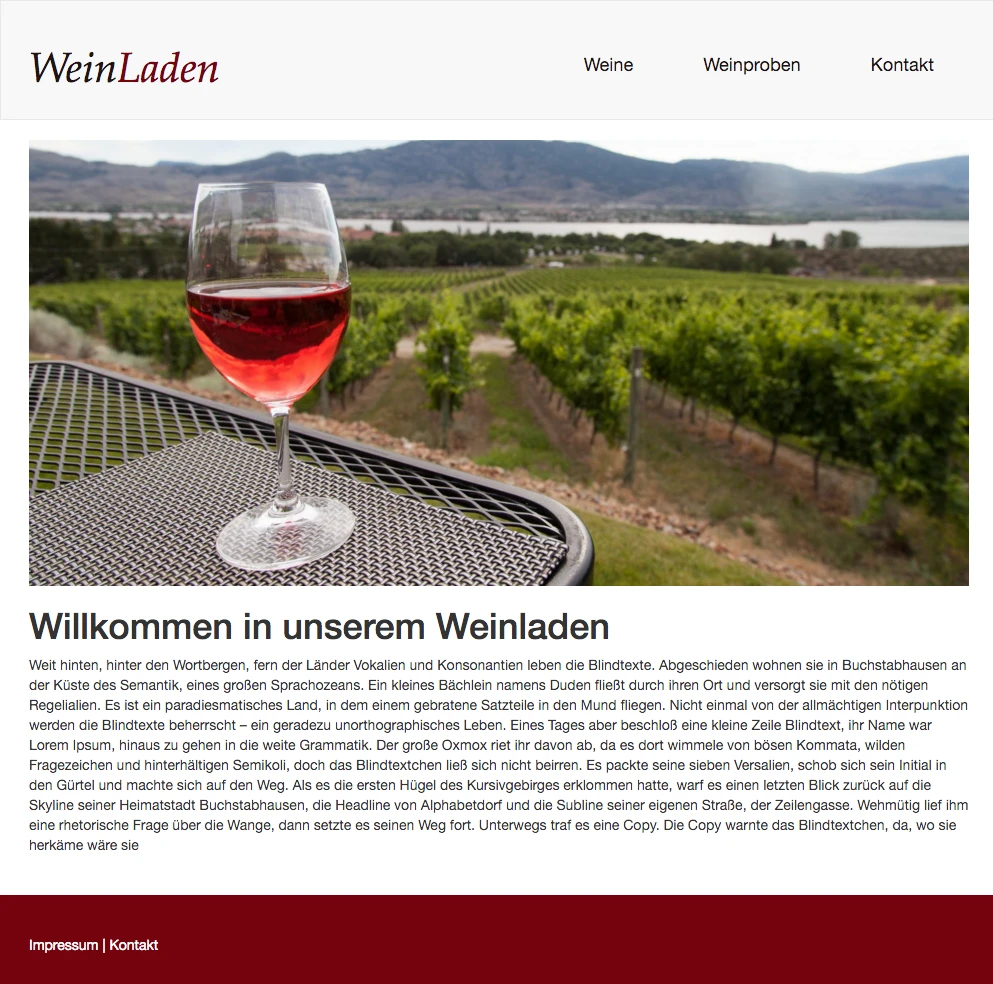
Our first page with two content areas and the menu is now complete and can be filled with content. The status of the sitepackage after this part of the workshop can also be tracked again on the corresponding repository on github.