Cancel
Start searching

This search is based on elasticsearch and can look through several thousand pages in miliseconds.
Learn more

Welcome to the third part of our Neos tutorial. In the first part, we showed how to easily set up a local development environment for Neos using Vagrant. In the second part , we created a site package for our own site. In this part, we’ll focus on the structure and configuration of custom content types.
To define your own content types, it’s important to first understand the data structure behind Neos, so this section begins with a bit of (fascinating) theory.
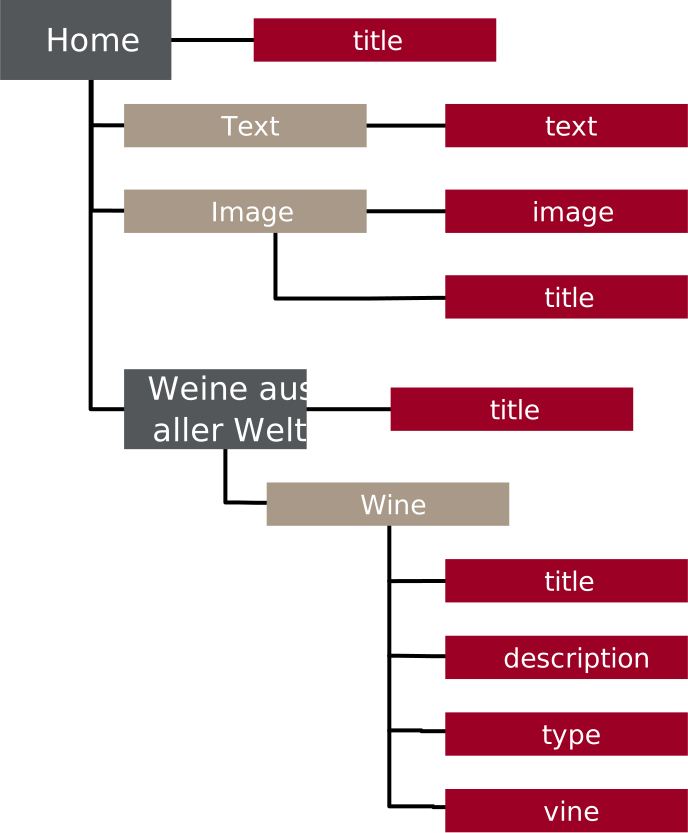
All content in Neos is stored as a node in a tree structure. You can think of this structure as similar to a computer’s file system. Each node has a unique name and a type—similar to the type of a file in the file system—which defines the node’s properties.
The node’s data is stored in its properties. Of course, each node can have additional child nodes. The root of the tree is a special node called “Site.”
This is best illustrated using a simple website with a hierarchical menu structure. Each page is represented by a node of the “Document” type—subpages on the second menu level are child nodes of the first level.
The page’s content, such as text or image elements, are also nodes that are attached as child nodes to the respective page. Content—such as a two-column container—can in turn have its own child nodes. Content can thus be nested to any depth. Additionally, each node can have any number of attributes, referred to here as “properties.”
The image shows such a tree with a “Home” page and a “Wines from Around the World” page. The pages can contain simple standard content such as text or images, or a special content element, which in our example represents a wine. We will create such an element in this part of the workshop.
Every new content type begins with the definition of its own NodeType. The data structures of the NodeType are defined in the YAML markup language. Meta-information such as editing options, help texts, and relationships to other types is also defined here. NodeType definitions can be inherited as needed, and multiple inheritance is also possible. This makes it possible to define simple, reusable data types that can then be combined with their properties to form larger definitions.
Neos already defines a number of abstract base types that specify the basic behavior of a data element.
With this knowledge, we can set out to create our own simple content type: tailored to the page, this will be a wine presentation featuring a title, description, image, and grape variety. All files we create in the following will be stored in the Site Package directory. The second part of the workshop illustrates the basic structure of the Site Package.
It has proven useful to spread the NodeType definition across multiple files to maintain a clearer overview. Therefore, we’ll place our definition in a new file, `NodeTypes.Wine.yaml`, in the ` Configuration` directory—it’s important that the filename begins with “NodeTypes.” so that Neos can automatically include it. Structures in YAML are defined solely through indentation with two spaces.
We’ll start with a simple definition of an element with two properties, Title and Description, as shown in the listing. The first line specifies the name of the NodeType. The `superTypes` in the line below specify which other NodeTypes it should inherit from. Since this is intended to be a content element, it inherits from the base type `ContentElement`.
Properties that describe the user interface and controls are always located under the “ui” key. The “Label” property gives the element a meaningful name. A recognizable icon helps the editor make a selection—any icon from the FontAwesome icon set can be used here.
'WL.WeinLaden:Wine':
  superTypes:
    'Neos.Neos:Content': true
  ui:
    label: Wein
    icon: icon-glass
    inspector:
      groups:
        wine:
          label: Wein
  properties:
    title:
      type: string
      ui:
        label: 'Name'
        inlineEditable: true
        aloha:
          placeholder: 'Titel des Weins'
    description:
      type: string
      ui:
        label: 'Beschreibung'
        inlineEditable: true
        aloha:
          placeholder: 'Beschreibung des Weins'
Configuration/NodeTypes.Wine.yaml
The "Inspector" section contains properties that apply to the controls in the right-hand sidebar. The controls can be organized into groups. A group labeled "Wine" is created here.
Next, the properties of the node are defined. Content of the "string" type can be edited directly "inline" on the page, which is specified using the property inlineEditable:true. "Aloha" is the name of the editor used for this purpose, which can be configured here. The placeholder text defined here is displayed if no custom text has been specified yet, thereby assisting the editor in editing the page.
Now let's move on to the display: By convention, Neos expects the template for a NodeType to be located in the directory Resources/Private/Templates/NodeTypes/<nodeTypeName>.html —in our case, "Wine."
{namespace neos=Neos\Neos\ViewHelpers}
<div {attributes -> f:format.raw()}>
	<neos:contentElement.editable property="title" tag="h3" />
	<neos:contentElement.editable property="description" tag="p" />
</div>
In the first line, we import the ViewHelpers from the neos namespace, which we need to display the editable elements. Using the "contentElement.editable" ViewHelper, we create editable HTML elements for the previously defined properties. The heading is rendered using the H3 tag, and the text is rendered as a paragraph.
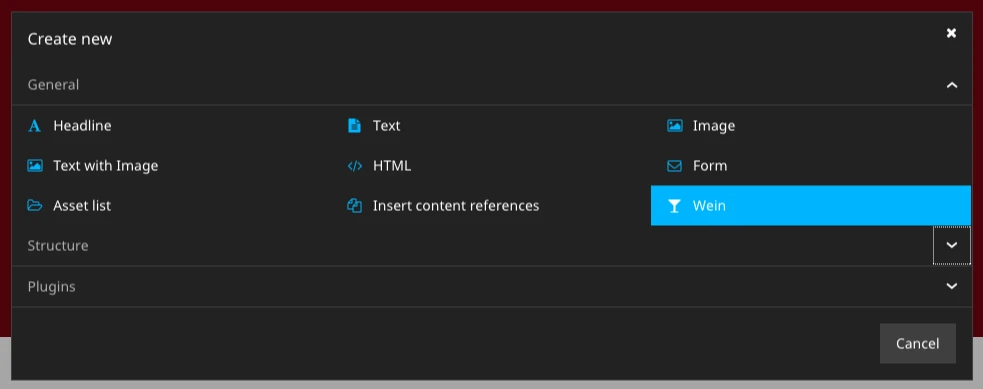
And there you have it—your first custom content element, which can now be integrated into the page.
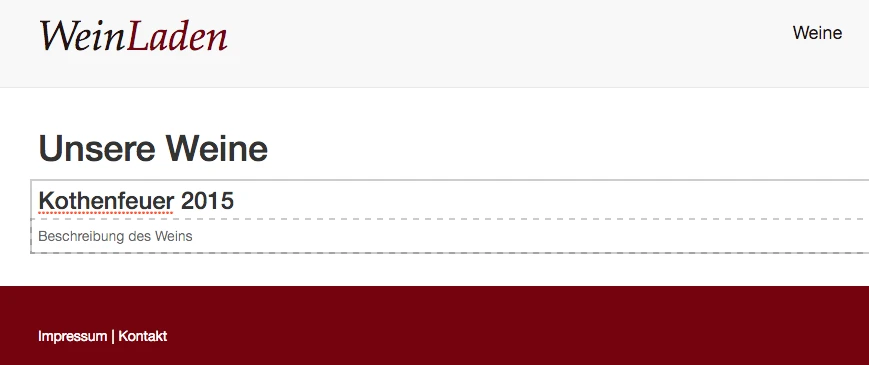
Let's move on to the second round—in this one, we want to expand the "Wine" content element to include the grape variety and an image.
The grape variety should not be entered as free text, but rather selected from a list of predefined varieties. Since this cannot be done directly on the page, the Inspector in the right-hand sidebar is configured starting at line 9.
The new field is added to the "wine" group. The editor should be of the “SelectBoxEditor” type, which displays a drop-down list for the values configured under “values.”
Next, the image. This is specified using the “ImageInterface” type. Specifying this type also ensures that an editor is available for uploading or selecting an image from the media module.
This editor can also be customized to meet specific requirements. In our case, we want all images to be displayed with the same aspect ratio. If an image with a different aspect ratio is uploaded, it should be automatically cropped.
The editor can individually determine which part of the image is displayed. To do this, we define a crop under `editorOptions` with a fixed aspect ratio of 3 to 2.
    grape:
      type: string
      ui:
        label: Rebsorte
        help:
          message: Hier bitte die Rebsorte wählen
        reloadIfChanged: true
        inspector:
          group: wine
          editor: Neos.Neos/Inspector/Editors/SelectBoxEditor
          editorOptions:
            values:
              Merlot:
                label: Merlot
              Syrah:
                label: Syrah
              Chardonnay:
                label: Chardonnay
    image:
      type: Neos\Media\Domain\Model\ImageInterface
      ui:
        label: Bild
        reloadIfChanged: true
        inspector:
          group: wine
          editorOptions:
            crop:
              aspectRatio:
                locked:
                  width: 3
                  height: 2
In this case, the easiest way to render the image element in the template is to use the Neos Image partial. To use this, you must set the PartialRootPath to the correct directory via Fusion. To do this, create a new file named Wine.fusion under Resources/Private/Fusion/NodeTypes/ and insert the following lines:
prototype(WL.WeinLaden:Wine) < prototype(Neos.Neos:Content) {
    partialRootPath = 'resource://Neos.NodeTypes/Private/Templates/NodeTypes/Partials'
}
Resources/Private/Fusion/NodeTypes/ Wine.fusion
This defines a new Fusion prototype for our content element, which is used for rendering. By inheriting from the base type "Content," we adopt some basic settings for displaying a content element, which we can now override or extend for our own element.
We include this file (as well as all other files in the NodeTypes directory) with the following line at the end of theRoot.fusion file:
include: NodeTypes/*The template for our content element can then be expanded to include the additional data. To display the image, we now use the Image Partial. This requires, as a minimum, the Image object and text for the alt tag.
{namespace neos=Neos\Neos\ViewHelpers}
<div {attributes -> f:format.raw()}>
    <div class="thumbnail">
        <f:render partial="Image" arguments="{image:node.properties.image, alt:node.properties.title, maximumWidth:1600}" />
        <div class="caption">
            <neos:contentElement.editable property="title" tag="h3" />
            <neos:contentElement.editable property="description" tag="p" />
            <div class="row">
                <div class="col-md-6">Rebsorte:</div><div class="col-md-6"><b>{node.properties.grape}</b></div>
            </div>
        </div>
    </div>
</div>
Resources/Private/Templates/NodeTypes/Wine.html
The images in our content element are initially displayed at their full original resolution. However, you can use the additional arguments `maximumWidth ` and `maximumHeight ` to limit the resolution of the `image` partial to a size that makes sense for our use case.
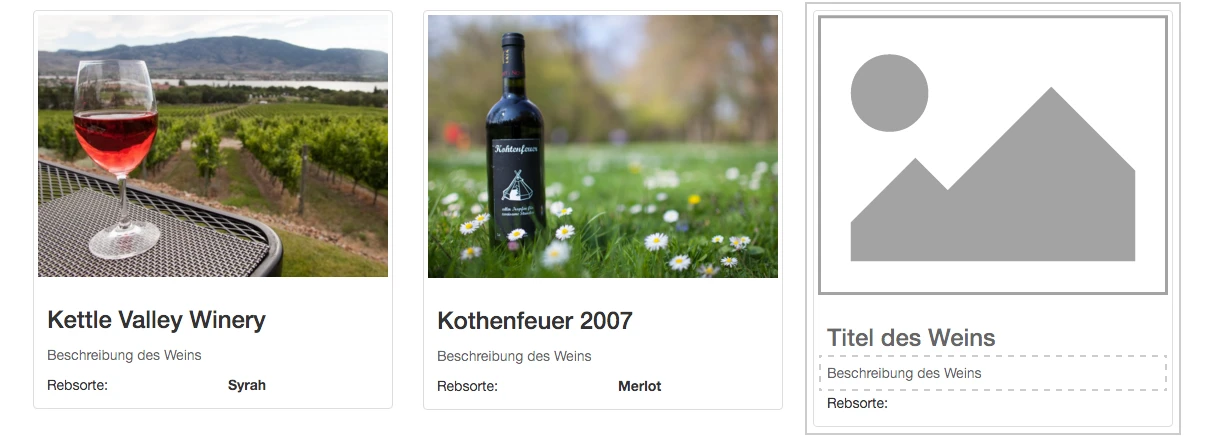
Our new content element would look great in a column of a multi-column container. Neos already includes containers for 2, 3, and 4 columns by default. However, to ensure they are rendered in a way that matches the markup and CSS classes used by the Bootstrap framework implemented here, a few minor adjustments need to be made.
These adjustments are also a great way to learn a little more about the functionality of Eel and FlowQuery.
We override the NodeType definition for the multi-column container that comes with Neos in our own file, NodeTypes.BootstrapAdjustments.yaml.
In the options for the column layout, remove the existing entries using a tilde (~) and replace them with the settings for the Bootstrap 12-column grid.
In the next step, we’ll also override the Fusion prototypes for the multi-column container and the individual columns to render the CSS classes for the Bootstrap grid.
The "attributes" array is present in all content types that inheritfrom the Neos.Neos:Contentdefinition. By convention, "attributes" is rendered in the outer HTML tag of the content element.
In the Neos.NodeTypes:MultiColumn prototype, we simply set the CSS class “row” here. In the Neos.NodeTypes:MultiColumnItem node type, things get a bit more interesting. Each column requires a class that defines its width. Based on the selected layout value “9-3,” the CSS class “col-md-9” should be generated for the first column and “col-md-3” for the second column. To do this, we split the layout value using the Eel helper ` String.split() ` at the “-” and use the value with the corresponding column index for each column.
'Neos.NodeTypes:TwoColumn':
  properties:
    'layout':
      defaultValue: '9-3'
      ui:
        inspector:
          editorOptions:
            values:
              '50-50': ~
              '75-25': ~
              '25-75': ~
              '66-33': ~
              '33-66': ~
              '9-3':
                label: '75% / 25%'
              '6-6':
                label: '50% / 50%'
              '3-9':
                label: '25% / 75%'

'Neos.NodeTypes:ThreeColumn':
  properties:
    layout:
      defaultValue: '4-4-4'
      ui:
        reloadIfChanged: true
        label: ''
        inspector:
          editorOptions:
            values:
              '33-33-33': ~
              '50-25-25': ~
              '25-50-25': ~
              '25-25-50': ~
              '4-4-4':
                label: '33% / 34% / 33%'
Configuration/NodeTypes.BootstrapAdjustments.yaml
prototype(Neos.NodeTypes:MultiColumn) {
    attributes.class = 'row'
    columns.iterationName = 'multiColumnIteration'
}

prototype(Neos.NodeTypes:MultiColumnItem) {
    attributes.class = ${'col-md-' + String.split(q(node).parent().property('layout'), '-')[multiColumnIteration.index]}
}
Fusion/NodeTypes/BootstrapAdjustments.fusion
In this part of the workshop, we saw how to define custom NodeTypes in YAML and render them using Fusion and Fluid, as well as how to easily extend and customize existing NodeTypes. The complete state of the site package can be viewed in the workshop’s GitHub repository .